Quick-Login from LegalLab
LegalLab has been updated to allow users to perform Quick-Login. In the Legal ID tab, a new button appears when selecting a Legal Identity that is Approved: Quick-Login.
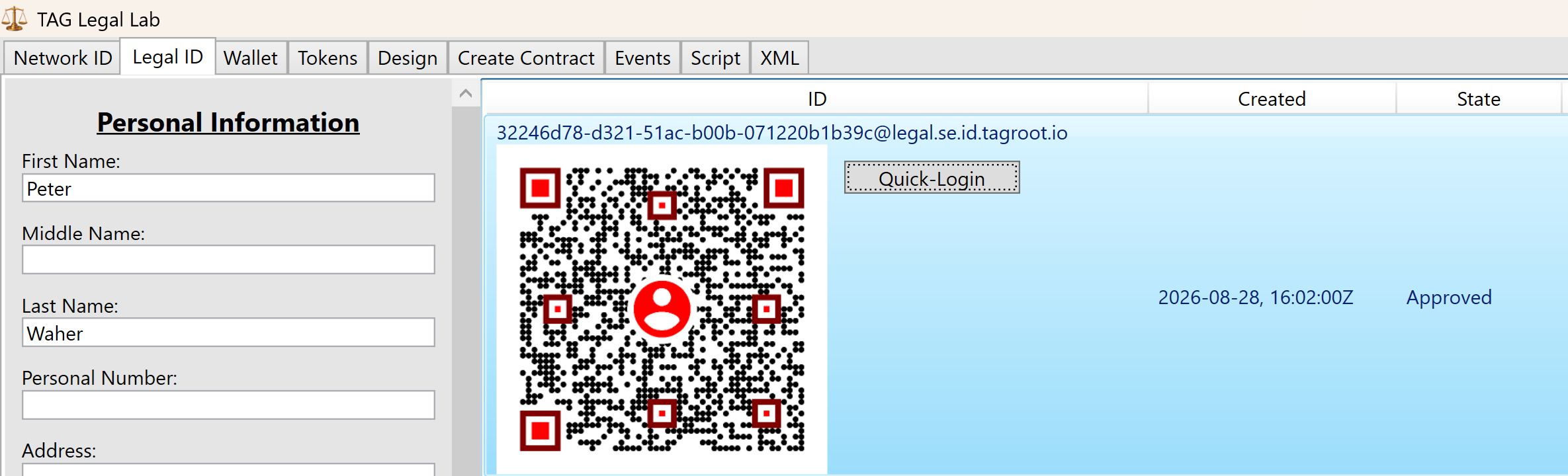
Click on this button, and then enter a tagsign URI. This URI can be taken from a Quick-Login form, by right-clicking the QR-code and selecting Copy Link.
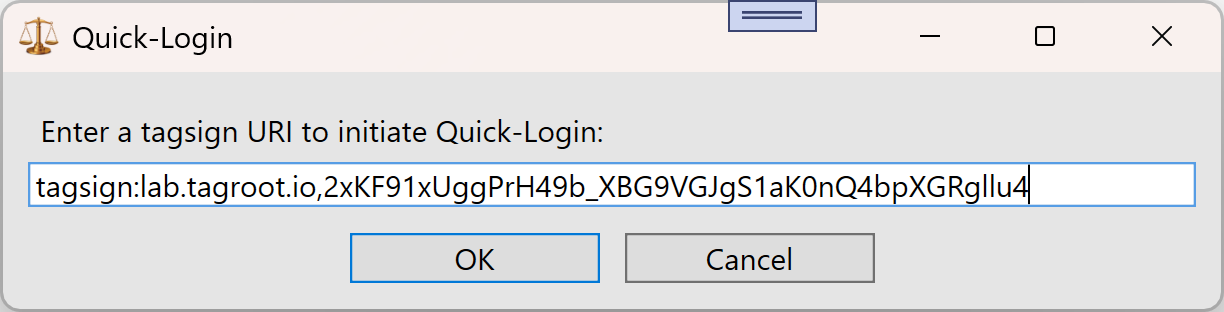
After successfully entering the URI, a petition request is sent from the Neuron® hosting the Quick-Login form. The petition is shown in a simple dialog in LegalLab:
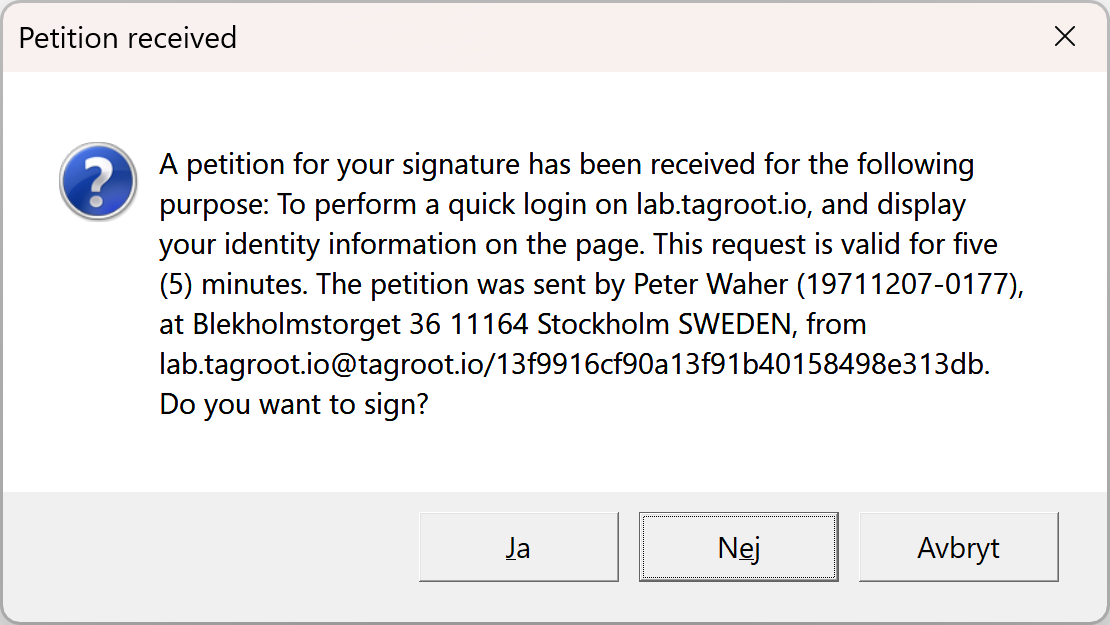
Click the Yes button to approve and sign the petition. The Neuron accepts the signature and you are logged in.
Using Agent API to execute reports on a Neuron
Reports on the Neuron® exist in its Harmonized IoT Architecture, under a separate Data Source with ID Reports. An XMPP user with sufficient privileges can access these reports and execute them. A web client can use the Agent API, and its extension Agent Things API to do the same. This article outlines the steps to take to execute a report, using the Agent API:
The web client can use an Agent Account on any Neuron, provided the Neuron can connect to the Neuron hosting the report to be executed.
Login calling the Agent API
AgentAPI.Account.Login()method. The web client will receive a token that it can use in subsequent requests. If you use the Javascript implementation provided, this is done automatically.You can check the account has sufficient privileges by calling the
AgentAPI.Things.Concentrator.GetAllDataSources()method after logging in. You need to specify theJIDof the Neuron (as a client to its Parent Neuron). If access is granted, theReportsdata source should be listed in the response. If not, check the following:The Agent account must have presence subcription approved to Neuron JID that you provide. If such a presence subscription does not exist, a presence subscription request will be sent automatically, and a
ForbiddenerrorAccount lacks an approved presence subscription.will be returned.To check presence subscriptions on the Neuron, go to the
Rosterpage from the Administrative menu, and accept the request shown there.Example:

Presence Subscription Request in Roster If the Agent account is on the same Neuron, the XMPP account must have sufficient privileges. To be able to view and administer the Reports data source, and any reports they contain, the user must have the
Source.Reports.*privilege (or as a privilege regular expression:+Source\.Reports\..*). (Refine this privilege if a subset is required.).If the Agent account is on another Neuron, a user account with the user name equal to the Bare JID of the Agent account needs to be created. This user account needs to be assigned a Role having the required privileges mentioned above.
You can call the
AgentAPI.Things.Concentrator.GetRootNodes()andAgentAPI.Things.Concentrator.GetChildNodes()to browse available report folders and the reports they contain. You need to use the sameJIDargument as above, and set the Source ID argument toReports. If you want to retrieve reports from a report folder, for instance, you need to call theAgentAPI.Things.Concentrator.GetChildNodes()resource, and also provide the ID of the reports folder node. If you want to get information about a particular node (or test if you have the correct Node ID), you can call theAgentAPI.Things.Concentrator.GetNode()resource.By calling the
AgentAPI.Things.Concentrator.GetNodeCommands()you receive a list of commands the account has access to. There are three types of commands:Simple,ParametrizedandQuery.Simplecommands are just executed; they do not need parameters, and they do not return any information apart from if the execution succeeded or failed. AParametrizedcommand, requires the user to provide parameter values before it can be executed. LikeSimplecommands, they provide no detailed responses apart from executing successfully or not. AQuerytakes parameters for input, but also return a response (which may be long) asynchronously, as the query is being executed.If you are going to execute a Parametrized command or query, you need to provide parameters. If you do not know what parameters are expected from the command, you can get a parameter form by calling the
AgentAPI.Things.Concentrator.GetCommandParameters()method.Depending on type of command, you then call the
AgentAPI.Things.Concentrator.ExecuteSimpleCommand()method, if it is aSimplecommand, theAgentAPI.Things.Concentrator.ExecuteParametrizedCommand()method, if it is aParametrizedcommand, or theAgentAPI.Things.Concentrator.ExecuteQuery()method, if it is aQuery.
Agent Reports API
The Agent API has an extension simplifying the execution of reports: The Agent Reports API. With some knowledge of where and how reports are accessed, it reduces access to reports to the following steps (some are the same as above, some are simplifications):
The web client can use an Agent Account on any Neuron, provided the Neuron can connect to the Neuron hosting the report to be executed.
Login calling the Agent API
AgentAPI.Account.Login()method. The web client will receive a token that it can use in subsequent requests. If you use the Javascript implementation provided, this is done automatically.To get a list of reports you have access to, call
AgentAPI.Reports.GetReports(). It will return an array of the report identifiers you can view.Get parameters for the report by calling
AgentAPI.Reports.GetReportParameters(). You can edit or reduce this set of parameters (or provide your own parameter object if you know the parameters you need for the next step), for the next step.You execute a report by calling
AgentAPI.Reports.ExecuteReport()method. It collects all asynchronous responses, and returns a consolidated report result.
Identity Application Attributes
A client that is about to apply for a new Legal Identity on a Neuron® can first retrieve Identity Application Attributes expected and supported by the Neuron. This query has been refactored (as of 2026-08-21), and now also lists available Identity Authenticator Applications and Peer Review Services installed on the Neuron.
The previous query provided information about if peer-review was enabled on the Neuron, and what fields are expected to be validated in peer-review applications. As of version 2026-08-21, the following information has been added:
The time the client has to review and upload a signed identity review document as an attachment to a recently approved Legal Identity.
What Identity Authenticator Services are available, and what Required and Optional properties and attachments each one processes.
What Peer Review Services are available, and what Required and Optional properties and attachments each one processes.
Note: A Peer Review Service is different from normal Peer Review in that normal peer review is supposedly a connected client that performs the peer review, while a Peer Review Service is a service running on the Neuron that either performs the peer review, or delegates the request to a peer. A Peer Review Service distinguishes itself from an Identity Authenticator Service, in that a Peer Review Service cannot by itself approve or reject an application. It only provides a review of the application. An Identity Authenticator Service on the other hand can approve or reject an application or parts of an application, by itself.
Special Considerations
Some properties are treated differently from the others. These are:
If
FULLNAMEis shown, the application can still be processed ifFIRSTand/orMIDDLEand/orLASTare used. Some services may listFIRSTandLASTas required andMIDDLEas optional, while others only listFULLNAMEas required. They can both be used. One just enphasizes that the First and Last names have semantical meaning, and may affect the validation, while usingFULLNAMEshows only the full name is validated, not the individual parts.The
PREIVEWproperty can both mean the Identity Application is made with the preview-flag set totrue, and/or thePREVIEWproperty be present in the list of properties.When listing attachments, only the expected local file name is presented, not the file extension (which may vary). For instance, the image file names (
ProfilePhoto,IdCardFront,IdCardBack,Passport,DriverLicenseFrontandDriverLicenseBack) can have any image file extension recognized by the Neuron, for example, the common.jpgor.png. The XML DocumentNFCattachment must have.xmlfile extension.
XMPP Example
Following is an XMPP example illustrating the request, and the type of response that can be returned.
XMPP Request:
<iq id="19" type="get" to="legal.lab.tagroot.io" from="peter@lab.tagroot.io/bf5330f0004696bea34cf03a93f1cad4">
   <applicationAttributes xmlns="urn:nfi:iot:leg:id:1.0"/>
</iq>
XMPP Response follows. Notice the new reviewTimeout attribute, and the new <authenticator> and <peerReviewService> elements:
<iq xmlns="jabber:client" id="19" type="result" to="peter@lab.tagroot.io/bf5330f0004696bea34cf03a93f1cad4" from="legal.lab.tagroot.io">
  <idApplicationAttributes xmlns="urn:nfi:iot:leg:id:1.0" reviewTimeout="3600" peerReview="true" nrReviewers="2" nrPhotos="1" iso3166="true">
    <required>FIRST</required>
    <required>LAST</required>
    <required>PNR</required>
    <required>REGION</required>
    <required>COUNTRY</required>
    <authenticator id="Paiwise.ShuftiPro" name="Shufti-Pro Identity Authenticator" fqn="Paiwise.ShuftiPro.KycService">
      <properties>
        <required>FIRST</required>
        <required>LAST</required>
        <required>COUNTRY</required>
        <required>PNR</required>
        <optional>MIDDLE</optional>
        <optional>ADDR</optional>
        <optional>ADDR2</optional>
        <optional>ZIP</optional>
        <optional>AREA</optional>
        <optional>REGION</optional>
        <optional>CITY</optional>
        <optional>BDAY</optional>
        <optional>BMONTH</optional>
        <optional>BYEAR</optional>
        <optional>GENDER</optional>
        <optional>NATIONALITY</optional>
      </properties>
      <attachments>
        <required>ProfilePhoto</required>
        <optional>IdCardFront</optional>
        <optional>IdCardBack</optional>
        <optional>Passport</optional>
        <optional>DriverLicenseFront</optional>
        <optional>DriverLicenseBack</optional>
      </attachments>
    </authenticator>
    <authenticator id="TAG.Identity.NeuroAccess" name="Neuro-Access Identity Authenticator" fqn="TAG.Identity.NeuroAccess.NeuroAccessAuthenticator">
      <properties>
        <required>JID</required>
        <required>COUNTRY</required>
        <optional>EMAIL</optional>
        <optional>PHONE</optional>
      </properties>
      <attachments/>
    </authenticator>
    <authenticator id="TAG.Identity.Serpro" name="Serpro Identity Authenticator" fqn="TAG.Identity.Serpro.ServiceModule">
      <properties>
        <required>FULLNAME</required>
        <required>COUNTRY</required>
        <required>PNR</required>
        <optional>ADDR</optional>
        <optional>ADDR2</optional>
        <optional>ZIP</optional>
        <optional>AREA</optional>
        <optional>REGION</optional>
        <optional>CITY</optional>
        <optional>BDAY</optional>
        <optional>BMONTH</optional>
        <optional>BYEAR</optional>
        <optional>GENDER</optional>
        <optional>NATIONALITY</optional>
      </properties>
      <attachments>
        <required>ProfilePhoto</required>
      </attachments>
    </authenticator>
    <authenticator id="TAG.Identity.TravelDocuments" name="ICAO eMRTD Identity Authenticator" fqn="TAG.Identity.TravelDocuments.ServiceModule">
      <properties>
        <required>PREVIEW</required>
        <required>FIRST</required>
        <required>LAST</required>
        <required>COUNTRY</required>
        <optional>MIDDLE</optional>
        <optional>BDAY</optional>
        <optional>BMONTH</optional>
        <optional>BYEAR</optional>
        <optional>AGEABOVE</optional>
        <optional>GENDER</optional>
        <optional>NATIONALITY</optional>
        <optional>PNR</optional>
      </properties>
      <attachments>
        <required>ProfilePhoto</required>
        <required>NFC</required>
      </attachments>
    </authenticator>
    <authenticator id="AgeAuthenticator" name="Age Authenticator" fqn="Waher.Service.IoTBroker.Legal.Identity.Age.AgeAuthenticator">
      <properties>
        <required>BYEAR</required>
        <required>BMONTH</required>
        <required>BDAY</required>
        <required>AGEABOVE</required>
      </properties>
      <attachments/>
    </authenticator>
    <authenticator id="PreviewAuthenticator" name="Preview Authenticator" fqn="Waher.Service.IoTBroker.Legal.Identity.Previews.PreviewAuthenticator">
      <properties>
        <required>PREVIEW</required>
      </properties>
      <attachments/>
    </authenticator>
    <peerReviewService id="TAG.Identity.FeaturedPeerReviewers.FeaturedPeerReviewersProvider" name="Featured Peer Reviewers" fqn="TAG.Identity.FeaturedPeerReviewers.FeaturedPeerReviewersProvider">
      <properties>
        <required>FIRST</required>
        <required>LAST</required>
        <required>PNR</required>
        <required>COUNTRY</required>
        <required>REGION</required>
        <optional>MIDDLE</optional>
        <optional>CITY</optional>
        <optional>AREA</optional>
        <optional>ZIP</optional>
        <optional>ADDR</optional>
        <optional>ADDR2</optional>
        <optional>NATIONALITY</optional>
        <optional>GENDER</optional>
        <optional>BDAY</optional>
        <optional>BMONTH</optional>
        <optional>BYEAR</optional>
      </properties>
      <attachments>
        <required>ProfilePhoto</required>
        <optional>IdCardFront</optional>
        <optional>IdCardBack</optional>
        <optional>Passport</optional>
        <optional>DriverLicenseFront</optional>
        <optional>DriverLicenseBack</optional>
      </attachments>
    </peerReviewService>
    <peerReviewService id="TAG.Payments.BankID" name="Bank ID" iconUrl="https://lab.tagroot.io/BankID/Images/BankID_logo.svg" iconWidth="620" iconHeight="515" fqn="TAG.Payments.BankID.BankIdServiceProvider">
      <properties>
        <required>COUNTRY</required>
        <required>PNR</required>
      </properties>
      <attachments/>
    </peerReviewService>
  </idApplicationAttributes>
</iq>
This article is being written
OAUTH 2 support in the Neuron
The Neuron® now supports OAUTH 2.0, and can be used as an authorization server in OAUTH-compliant systems (from build 2026-07-13). The OAUTH 2 environment available in the Neuron includes the following resources:
- An authorization resource (RFC 6749) at
/oauth/authorize. - A token resource (RFC 6749) at
/oauth/token. - A dynamic client registration resource (RFC 7591 and RFC 7592), supporting both public and confidential client registrations, at
/oauth/register. - A management resource for dynamic client registrations (RFC 7591) at
/oauth/registration. - A resource providing support for the device authorization flow (RFC 8628) at
/oauth/device - A token introspection resource, in accordance with RFC 7662 at
/oauth/introspect - A server OAUTH meta-data resource (RFC 8414) at
/.well-known/oauth-authorization-serverallowing external parties a way to find available resources and features. - A resource providing meta-data for protected resources (RFC 9728) at
/.well-known/oauth-protected-resource.
Apart from the resources defined, there are some notable features and extensions that are supported, and merit mentioning:
- Proof Key for Code Exchange by OAuth Public Clients (PKCE) (RFC 7636), securing the authorization flow.
- Support for refresh tokens (RFC 6749)
- Implicit token generation from traditional Neuron authentication, or Mutual TLS (mTLS).
- OAUTH clients (services) that want to use the Neuron as an OAUTH authorization server, should register themselves with the Neuron using the dynamic client registration interface, and provide a human-readable name, logotype and corresponding URIs for more information.
- Dynamic login forms generated by the OAUTH environment are generated first in Markdown, and then transformed to HTML before being returned to the user. This allows opertors of the Neuron to customize the look & feel of the login form, by customizing the
MasterOAuth.mdfile available in the web root folder. The dynamic form is embedded in this master file, before being rendered as HTML.
Authentication, scopes and privileges are related as follows:
- Scopes in OAUTH, are translated into Privileges in the Neuron, having the prefix
OAUTH.Scope.followed by the scope, where colons (:) are replaced by periods (.). - An external party can authenticate itself with the OAUTH environment, and be authorized to receive a JWT token, which it should provide in subsequent requests using a
Bearertoken in anAuthorizationHTTP header. - Dynamic client registrations, and clients that authenticate themselves using credentials for an XMPP account, have no privileges by default. Attempts to authorize access to specific scopes using such accounts will be rejected.
- Administrative user accounts will have the privileges provided to them via the Roles defined for the corresponding user accounts.
Dynamic client registration has been integrated into the Neuron using the following principles:
- The Neuron enables dynamic client registration by creating an API Key with the name
OAUTH. If there is no such API key on the Neuron, dynamic client registration is not permitted. - A remote endpoint can register at most 2 clients (public or confidential).
- Registered clients receive a corresponding XMPP account with the same
client_id. These accounts are disabled for XMPP communication by default, but can be enabled manually. (Future work may provide a mechanism to automatically enable such accounts, by validating e-mail and/or phone numbers provided in client registration.)
Security Note: You can limit access to OAUTH using the Web-Application Firewall (or WAF), by restricting access to any resource that starts with /oauth/.
mTLS Test
The mTLSTest repository contains tools and a package to help troubleshoot and test Mutual TLS (mTLS) connections from clients to a Neuron®. It contains a small content package that provides a web page and a web service that humans and/or machines can use to ping the Neuron® and get information about the connection, including information about any client certificate the Neuron was able to receive from the client.
The repository also contains:
- A communication library for the mTLS Ping API.
- Unit tests that can be used to automate testing of mTLS connectivity.
- A command-line tool for testing mTLS connectivity.
- A method for testing mTLS connectivity manually, using a browser.
- Information about requirements for client certificates.
- Instructions on how to install the package on a Neuron.
Posts tagged #new
No more posts with the given tag could be found. You can go back to the main view by selecting Home in the menu above.