Security Update: Configuration of the Neuron running in Docker containers
During configuration of the IoT Gateway, there existed a vulnerability (prior to build 2026-09-08) that made it possible to hijack the configuration of the Neuron from the local area network, if the Neuron ran in a Docker container (or similar environment). This vulnerability does not affect Neurons that are already installed, or Neurons that are being installed in non-container environments. This vulnerability has been fixed in build 2026-09-08.
During configuration of the Neuron (or Gateway) the operator uses the localhost interface to make initial configurations. In a Docker container, such an interface is not available, and so access to the Neuron (or Gateway) was permitted, if the request came from the local area network (non-public IP addresses), at least until the initial configuration had been made. During this time-frame (from container start until initial configuration completed), a malicious actor in the local area network could access the Neuron and perform the configuration steps itself. This has been fixed as is described in the following paragraphs.
First, the vulnerable implementation has been removed, and been replaced with a new machanism based on a random token being generated during initial configuration. This token needs to be provided as a query parameter in the URL, appending
?StartupToken=...or&StartupToken=...as appropriate.Information about the startup token is made available both in the log (which gets displayed on the console), viewable in the Docker log, and also as a text file in the application data folder, which should reside on a volume, also accessible to the operator.
The token is only available during configuration, and is removed afterward. The method of accessing the Neuron (or Gateway) using startup tokens is only available if running in a container, and only during initial configuration.
After successful configuration, all sessions are removed from the web server, forcing the operator to login again.
If the token is used from an endpoint, it cannot then be used from another endpoint. If a malicious actor is first, the operator cannot enter (unless from the same IP), and immediately learns of the compromise. If the operator enters first, and a malicious actor tries, the malicious actor cannot enter (unless from the same IP as the operator). A malicious actor can therefore only enter undetected, if the computer (or network) of the operator is already compromised, and the malicious actor has access to the communication between the operator and gateway, and knows how to login after the operator has logged in already, or access to the Docker logs.
Note: During the configuration phase, an actor cannot navigate pages freely: Only the current configuration page is available. This is true for both the operator and any hypothetical malicious actor. (This is controlled by the ResourceOverride property on the HttpServer). Once configuration has been performed, this hard routing to configuration pages is removed, but so are all sessions and log-ins, and any user, including malicious actors, cannot use such a token to login again.
Note 2: An additional protection mechanism has been added: The Neuron (or Gateway) will only accept one Remote Endpoint to use the startup token. If the operator configuring the Neuron (or Gateway), and any hypothetical malicious actor, access the Neuron (or Gateway) from different IP addresses, only one will be granted access, even if both have access to the startup token.
This vulnerability was found and reported, together with a proposed solution by Furkan Arslan. Much appreciated.
Quick-Login from LegalLab
LegalLab has been updated to allow users to perform Quick-Login. In the Legal ID tab, a new button appears when selecting a Legal Identity that is Approved: Quick-Login.
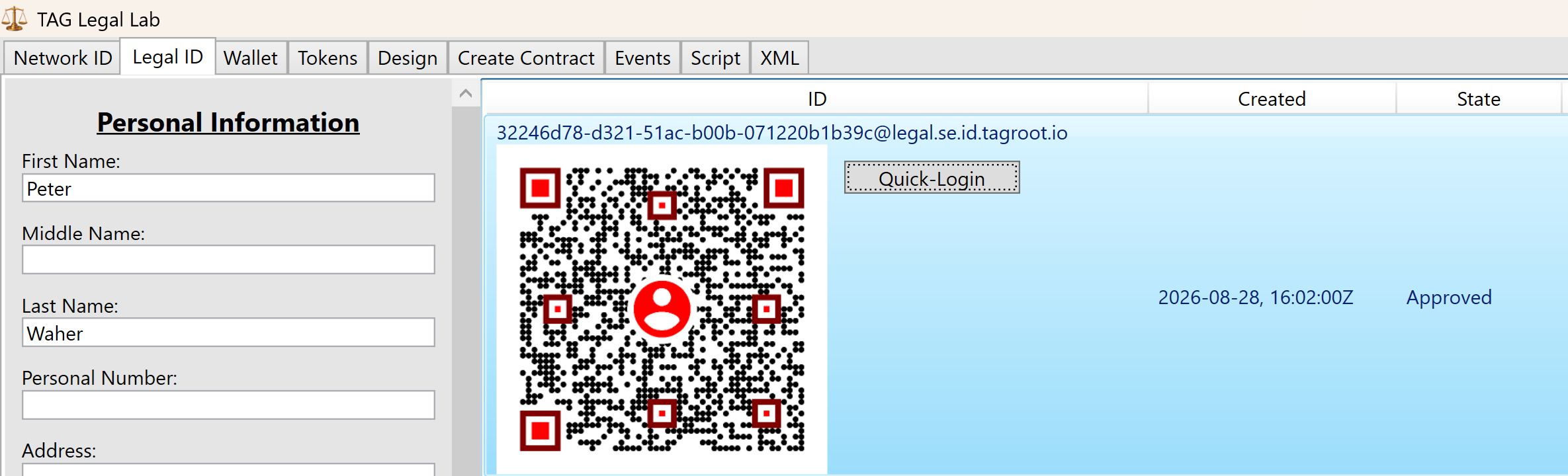
Click on this button, and then enter a tagsign URI. This URI can be taken from a Quick-Login form, by right-clicking the QR-code and selecting Copy Link.
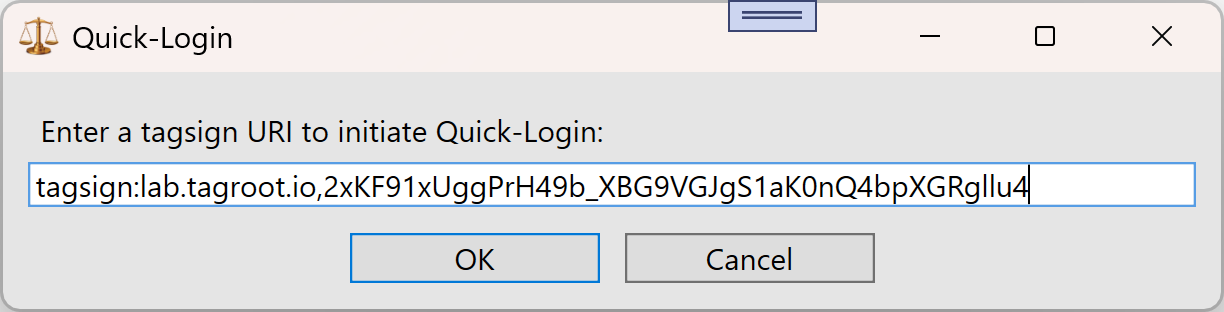
After successfully entering the URI, a petition request is sent from the Neuron® hosting the Quick-Login form. The petition is shown in a simple dialog in LegalLab:
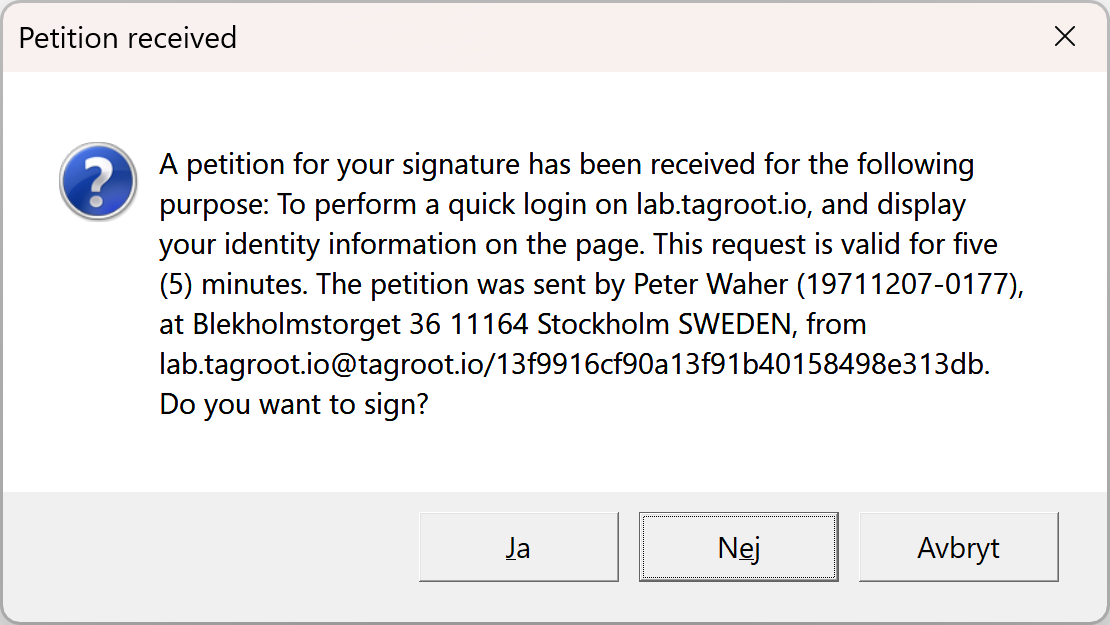
Click the Yes button to approve and sign the petition. The Neuron accepts the signature and you are logged in.
Using Agent API to execute reports on a Neuron
Reports on the Neuron® exist in its Harmonized IoT Architecture, under a separate Data Source with ID Reports. An XMPP user with sufficient privileges can access these reports and execute them. A web client can use the Agent API, and its extension Agent Things API to do the same. This article outlines the steps to take to execute a report, using the Agent API:
The web client can use an Agent Account on any Neuron, provided the Neuron can connect to the Neuron hosting the report to be executed.
Login calling the Agent API
AgentAPI.Account.Login()method. The web client will receive a token that it can use in subsequent requests. If you use the Javascript implementation provided, this is done automatically.You can check the account has sufficient privileges by calling the
AgentAPI.Things.Concentrator.GetAllDataSources()method after logging in. You need to specify theJIDof the Neuron (as a client to its Parent Neuron). If access is granted, theReportsdata source should be listed in the response. If not, check the following:The Agent account must have presence subcription approved to Neuron JID that you provide. If such a presence subscription does not exist, a presence subscription request will be sent automatically, and a
ForbiddenerrorAccount lacks an approved presence subscription.will be returned.To check presence subscriptions on the Neuron, go to the
Rosterpage from the Administrative menu, and accept the request shown there.Example:

Presence Subscription Request in Roster If the Agent account is on the same Neuron, the XMPP account must have sufficient privileges. To be able to view and administer the Reports data source, and any reports they contain, the user must have the
Source.Reports.*privilege (or as a privilege regular expression:+Source\.Reports\..*). (Refine this privilege if a subset is required.).If the Agent account is on another Neuron, a user account with the user name equal to the Bare JID of the Agent account needs to be created. This user account needs to be assigned a Role having the required privileges mentioned above.
You can call the
AgentAPI.Things.Concentrator.GetRootNodes()andAgentAPI.Things.Concentrator.GetChildNodes()to browse available report folders and the reports they contain. You need to use the sameJIDargument as above, and set the Source ID argument toReports. If you want to retrieve reports from a report folder, for instance, you need to call theAgentAPI.Things.Concentrator.GetChildNodes()resource, and also provide the ID of the reports folder node. If you want to get information about a particular node (or test if you have the correct Node ID), you can call theAgentAPI.Things.Concentrator.GetNode()resource.By calling the
AgentAPI.Things.Concentrator.GetNodeCommands()you receive a list of commands the account has access to. There are three types of commands:Simple,ParametrizedandQuery.Simplecommands are just executed; they do not need parameters, and they do not return any information apart from if the execution succeeded or failed. AParametrizedcommand, requires the user to provide parameter values before it can be executed. LikeSimplecommands, they provide no detailed responses apart from executing successfully or not. AQuerytakes parameters for input, but also return a response (which may be long) asynchronously, as the query is being executed.If you are going to execute a Parametrized command or query, you need to provide parameters. If you do not know what parameters are expected from the command, you can get a parameter form by calling the
AgentAPI.Things.Concentrator.GetCommandParameters()method.Depending on type of command, you then call the
AgentAPI.Things.Concentrator.ExecuteSimpleCommand()method, if it is aSimplecommand, theAgentAPI.Things.Concentrator.ExecuteParametrizedCommand()method, if it is aParametrizedcommand, or theAgentAPI.Things.Concentrator.ExecuteQuery()method, if it is aQuery.
Agent Reports API
The Agent API has an extension simplifying the execution of reports: The Agent Reports API. With some knowledge of where and how reports are accessed, it reduces access to reports to the following steps (some are the same as above, some are simplifications):
The web client can use an Agent Account on any Neuron, provided the Neuron can connect to the Neuron hosting the report to be executed.
Login calling the Agent API
AgentAPI.Account.Login()method. The web client will receive a token that it can use in subsequent requests. If you use the Javascript implementation provided, this is done automatically.To get a list of reports you have access to, call
AgentAPI.Reports.GetReports(). It will return an array of the report identifiers you can view.Get parameters for the report by calling
AgentAPI.Reports.GetReportParameters(). You can edit or reduce this set of parameters (or provide your own parameter object if you know the parameters you need for the next step), for the next step.You execute a report by calling
AgentAPI.Reports.ExecuteReport()method. It collects all asynchronous responses, and returns a consolidated report result.
Identity Application Attributes
A client that is about to apply for a new Legal Identity on a Neuron® can first retrieve Identity Application Attributes expected and supported by the Neuron. This query has been refactored (as of 2026-08-21), and now also lists available Identity Authenticator Applications and Peer Review Services installed on the Neuron.
The previous query provided information about if peer-review was enabled on the Neuron, and what fields are expected to be validated in peer-review applications. As of version 2026-08-21, the following information has been added:
The time the client has to review and upload a signed identity review document as an attachment to a recently approved Legal Identity.
What Identity Authenticator Services are available, and what Required and Optional properties and attachments each one processes.
What Peer Review Services are available, and what Required and Optional properties and attachments each one processes.
Note: A Peer Review Service is different from normal Peer Review in that normal peer review is supposedly a connected client that performs the peer review, while a Peer Review Service is a service running on the Neuron that either performs the peer review, or delegates the request to a peer. A Peer Review Service distinguishes itself from an Identity Authenticator Service, in that a Peer Review Service cannot by itself approve or reject an application. It only provides a review of the application. An Identity Authenticator Service on the other hand can approve or reject an application or parts of an application, by itself.
Special Considerations
Some properties are treated differently from the others. These are:
If
FULLNAMEis shown, the application can still be processed ifFIRSTand/orMIDDLEand/orLASTare used. Some services may listFIRSTandLASTas required andMIDDLEas optional, while others only listFULLNAMEas required. They can both be used. One just enphasizes that the First and Last names have semantical meaning, and may affect the validation, while usingFULLNAMEshows only the full name is validated, not the individual parts.The
PREIVEWproperty can both mean the Identity Application is made with the preview-flag set totrue, and/or thePREVIEWproperty be present in the list of properties.When listing attachments, only the expected local file name is presented, not the file extension (which may vary). For instance, the image file names (
ProfilePhoto,IdCardFront,IdCardBack,Passport,DriverLicenseFrontandDriverLicenseBack) can have any image file extension recognized by the Neuron, for example, the common.jpgor.png. The XML DocumentNFCattachment must have.xmlfile extension.
XMPP Example
Following is an XMPP example illustrating the request, and the type of response that can be returned.
XMPP Request:
<iq id="19" type="get" to="legal.lab.tagroot.io" from="peter@lab.tagroot.io/bf5330f0004696bea34cf03a93f1cad4">
   <applicationAttributes xmlns="urn:nfi:iot:leg:id:1.0"/>
</iq>
XMPP Response follows. Notice the new reviewTimeout attribute, and the new <authenticator> and <peerReviewService> elements:
<iq xmlns="jabber:client" id="19" type="result" to="peter@lab.tagroot.io/bf5330f0004696bea34cf03a93f1cad4" from="legal.lab.tagroot.io">
  <idApplicationAttributes xmlns="urn:nfi:iot:leg:id:1.0" reviewTimeout="3600" peerReview="true" nrReviewers="2" nrPhotos="1" iso3166="true">
    <required>FIRST</required>
    <required>LAST</required>
    <required>PNR</required>
    <required>REGION</required>
    <required>COUNTRY</required>
    <authenticator id="Paiwise.ShuftiPro" name="Shufti-Pro Identity Authenticator" fqn="Paiwise.ShuftiPro.KycService">
      <properties>
        <required>FIRST</required>
        <required>LAST</required>
        <required>COUNTRY</required>
        <required>PNR</required>
        <optional>MIDDLE</optional>
        <optional>ADDR</optional>
        <optional>ADDR2</optional>
        <optional>ZIP</optional>
        <optional>AREA</optional>
        <optional>REGION</optional>
        <optional>CITY</optional>
        <optional>BDAY</optional>
        <optional>BMONTH</optional>
        <optional>BYEAR</optional>
        <optional>GENDER</optional>
        <optional>NATIONALITY</optional>
      </properties>
      <attachments>
        <required>ProfilePhoto</required>
        <optional>IdCardFront</optional>
        <optional>IdCardBack</optional>
        <optional>Passport</optional>
        <optional>DriverLicenseFront</optional>
        <optional>DriverLicenseBack</optional>
      </attachments>
    </authenticator>
    <authenticator id="TAG.Identity.NeuroAccess" name="Neuro-Access Identity Authenticator" fqn="TAG.Identity.NeuroAccess.NeuroAccessAuthenticator">
      <properties>
        <required>JID</required>
        <required>COUNTRY</required>
        <optional>EMAIL</optional>
        <optional>PHONE</optional>
      </properties>
      <attachments/>
    </authenticator>
    <authenticator id="TAG.Identity.Serpro" name="Serpro Identity Authenticator" fqn="TAG.Identity.Serpro.ServiceModule">
      <properties>
        <required>FULLNAME</required>
        <required>COUNTRY</required>
        <required>PNR</required>
        <optional>ADDR</optional>
        <optional>ADDR2</optional>
        <optional>ZIP</optional>
        <optional>AREA</optional>
        <optional>REGION</optional>
        <optional>CITY</optional>
        <optional>BDAY</optional>
        <optional>BMONTH</optional>
        <optional>BYEAR</optional>
        <optional>GENDER</optional>
        <optional>NATIONALITY</optional>
      </properties>
      <attachments>
        <required>ProfilePhoto</required>
      </attachments>
    </authenticator>
    <authenticator id="TAG.Identity.TravelDocuments" name="ICAO eMRTD Identity Authenticator" fqn="TAG.Identity.TravelDocuments.ServiceModule">
      <properties>
        <required>PREVIEW</required>
        <required>FIRST</required>
        <required>LAST</required>
        <required>COUNTRY</required>
        <optional>MIDDLE</optional>
        <optional>BDAY</optional>
        <optional>BMONTH</optional>
        <optional>BYEAR</optional>
        <optional>AGEABOVE</optional>
        <optional>GENDER</optional>
        <optional>NATIONALITY</optional>
        <optional>PNR</optional>
      </properties>
      <attachments>
        <required>ProfilePhoto</required>
        <required>NFC</required>
      </attachments>
    </authenticator>
    <authenticator id="AgeAuthenticator" name="Age Authenticator" fqn="Waher.Service.IoTBroker.Legal.Identity.Age.AgeAuthenticator">
      <properties>
        <required>BYEAR</required>
        <required>BMONTH</required>
        <required>BDAY</required>
        <required>AGEABOVE</required>
      </properties>
      <attachments/>
    </authenticator>
    <authenticator id="PreviewAuthenticator" name="Preview Authenticator" fqn="Waher.Service.IoTBroker.Legal.Identity.Previews.PreviewAuthenticator">
      <properties>
        <required>PREVIEW</required>
      </properties>
      <attachments/>
    </authenticator>
    <peerReviewService id="TAG.Identity.FeaturedPeerReviewers.FeaturedPeerReviewersProvider" name="Featured Peer Reviewers" fqn="TAG.Identity.FeaturedPeerReviewers.FeaturedPeerReviewersProvider">
      <properties>
        <required>FIRST</required>
        <required>LAST</required>
        <required>PNR</required>
        <required>COUNTRY</required>
        <required>REGION</required>
        <optional>MIDDLE</optional>
        <optional>CITY</optional>
        <optional>AREA</optional>
        <optional>ZIP</optional>
        <optional>ADDR</optional>
        <optional>ADDR2</optional>
        <optional>NATIONALITY</optional>
        <optional>GENDER</optional>
        <optional>BDAY</optional>
        <optional>BMONTH</optional>
        <optional>BYEAR</optional>
      </properties>
      <attachments>
        <required>ProfilePhoto</required>
        <optional>IdCardFront</optional>
        <optional>IdCardBack</optional>
        <optional>Passport</optional>
        <optional>DriverLicenseFront</optional>
        <optional>DriverLicenseBack</optional>
      </attachments>
    </peerReviewService>
    <peerReviewService id="TAG.Payments.BankID" name="Bank ID" iconUrl="https://lab.tagroot.io/BankID/Images/BankID_logo.svg" iconWidth="620" iconHeight="515" fqn="TAG.Payments.BankID.BankIdServiceProvider">
      <properties>
        <required>COUNTRY</required>
        <required>PNR</required>
      </properties>
      <attachments/>
    </peerReviewService>
  </idApplicationAttributes>
</iq>
This article is being written
Counter Reports
The Neuron® contains runtime counters of different types. They reside in the collection RuntimeCounters that contain a collection of RuntimeCounter objects. They are efficiently maintained in-memory, so incrementing them frequently does not affect performance greatly. Each counter is either persisted after one minute of no activity, or after 15 minutes of regular activity (at least one action per minute). Since the most recent counter value is often stored in-memory, the database collection is not the most reliable source of what counter values exist. The counter keys can be taken from the collection, but the most recent values should be retrieved using script. The script functions DecCounter, FlushClunters, GetCounter, GetCounters and IncCounter can be used to access runtime counters from script.
Note: RuntimeCounters is a namespace in the underlying code. This means that the SELECT statement select count(*) from RuntimeCounters will fail, since the RuntimeCounters reference will refer to the namespace instead of the collection. To make SELECT statements referring to counters, use double quotes around the name, to ensure the name is treated as a label, and not a reference to something else, as follows: select count(*) from "RuntimeCounters". You can also use the script functions.
Counter Script primer
Before delving into counter reports, first some background in how to extract information about counters using script. Each counter is represented by a RuntimeCounter object. You can select data from the database, either by referring to the class name of the counter object RuntimeCounter, or to the collection name, but using double-quotes to avoid referring to the namespace: "RuntimeCounters". (Should there be another class named RuntimeCounter in the code-behind, you need to refer to the fully-qualified name of the class, rather than the local name. Referring only to the local name would return a vector of the different class types matching the local name reference.)
Getting the properties avialable in persisted objects of a class, use the properties() function:
properties(RuntimeCounter)
This gives:
["ObjectId", "Key", "Counter"]
To extract available counters, we therefore do as follows: (Note here the use of the script function GetCounter() to get the value in memory, if any.
SELECT
	Key,
	GetCounter(Key) Value
FROM
	RuntimeCounter
ORDER BY
	Key
There will most probably be a lot of counters there. Some are communication-related, others are service-related. Others relate to specific Neuron-operations that may be of interest for statistical purposes or billing.
Counter differences
The script engine contains a feature referred to as subtraction of two dictionaries that makes it simple to compare counters from two different points in time. Since each key is unique, you can create a dictionary (object) of the counter values as follows:
Sample1:={};
foreach Counter in (SELECT Key FROM RuntimeCounter) do
	Sample1[Counter]:=GetCounter(Counter);
At a later time you similarly do:
Sample2:={};
foreach Counter in (SELECT Key FROM RuntimeCounter) do
	Sample2[Counter]:=GetCounter(Counter);
To get the differences of samples, you simply do:
Sample2-Sample1
Here, each object does not have to have the same propery values. If a property does not exist in one of the samples, but exists in the other, it is treated as having the zero element (in the underlying group, here being Integers).
Note: Once a set of counters is converted into a dictionary, as shown above, it can be persisted as a property itself in an object by itself in the database. The reports repsented below has this feature to save snapshots from the counters collection using labels that can be retrieved later for comparison purposes.
If many of the counters are the same between snapshots (i.e. there are many zeroes), we can remove all zeroes and create a reduced difference set as follows. First, we convert the dictionary into a vector, and then use the subset construction to create a smaller vector consisting of only objects whose values are not zero. By transposing this result, we get the result in tabular form.
Diff:=[foreach P in Sample2-Sample1 : P];
[P in Diff:P.Value!=0]T
In our example above, if Sample1 and Sample2 are made in relative close proximity, only a few counters have been modified. The result could look something like:
[[[XMPP.Server.Set.pubsub, 1]],
 [[XMPP.Server.Get.ping, 221]],
 [[E2EE.Counter, 11]]]
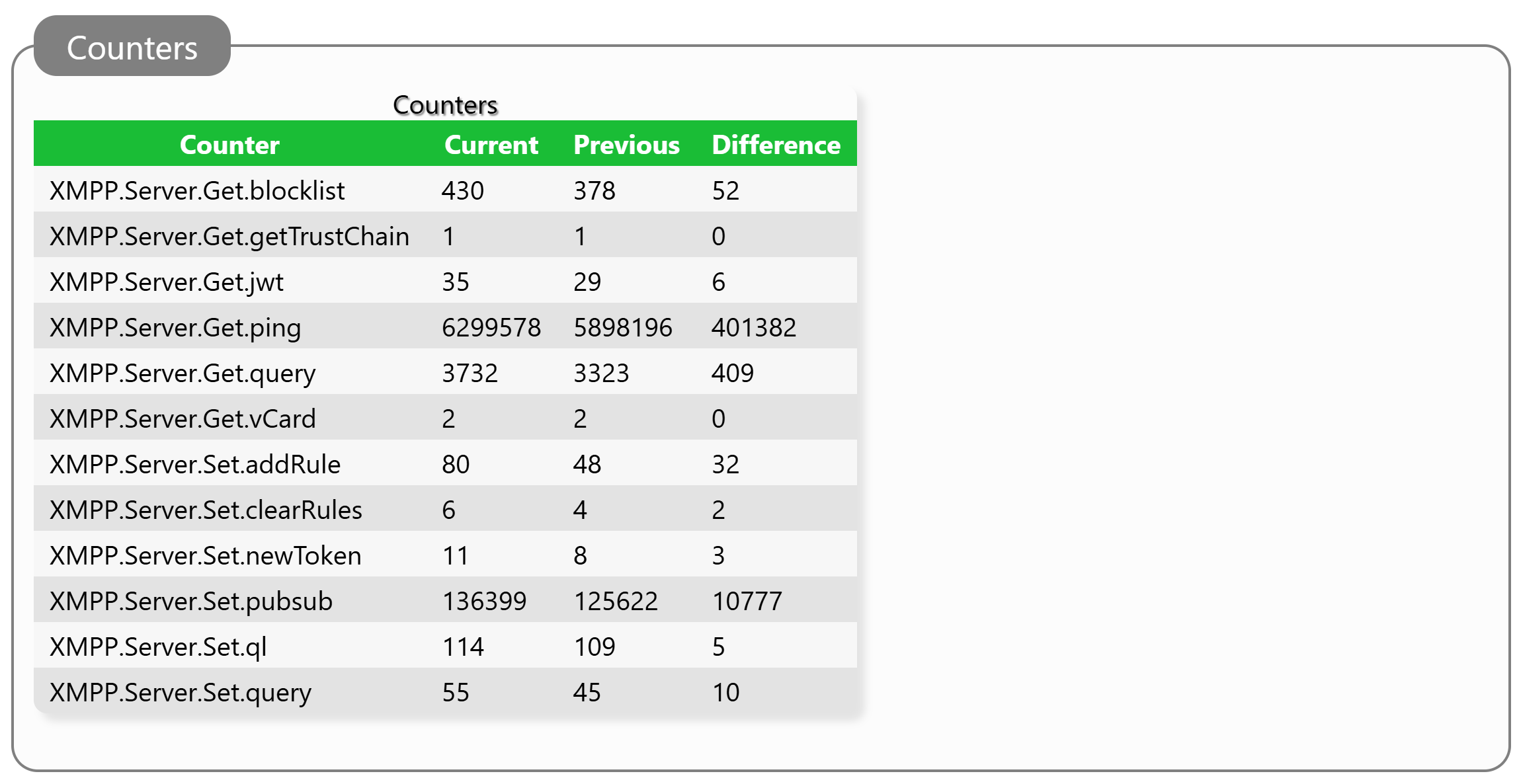
The example above shows 1 XMPP Publish/Subscribe operation, 221 XMPP ping operations to maintain connectivity and 11 End-to-End Encrypted stanzas communicated between samples.
Counter Labels
Samples in counter-reports described below are stored using Labels. These labels are stored in two different collections, depending on report: CounterLabels and BillableLabels. To get available labels, you can execute simple SELECT statements:
select Label from CounterLabels
or:
select Label from BillableLabels
Counter Reports
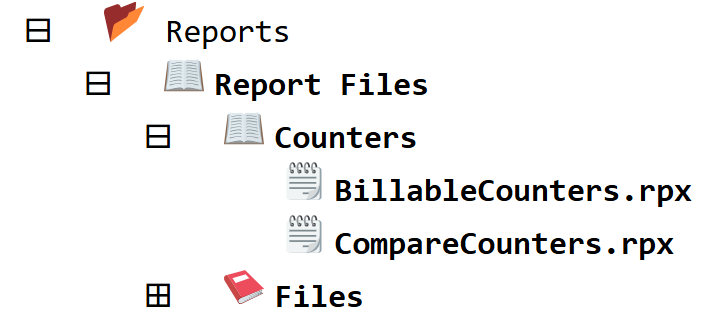
File-based reports make working with script easier. They allow you to parametrize script, and present the results in a more user-friendly manner (meaning, you don’t have to know script to know the results). There are two reports available that can be used to extract information from runtime counters. From Sources & Nodes in the administrative portal, you find the reports here:
Compare Counters Report
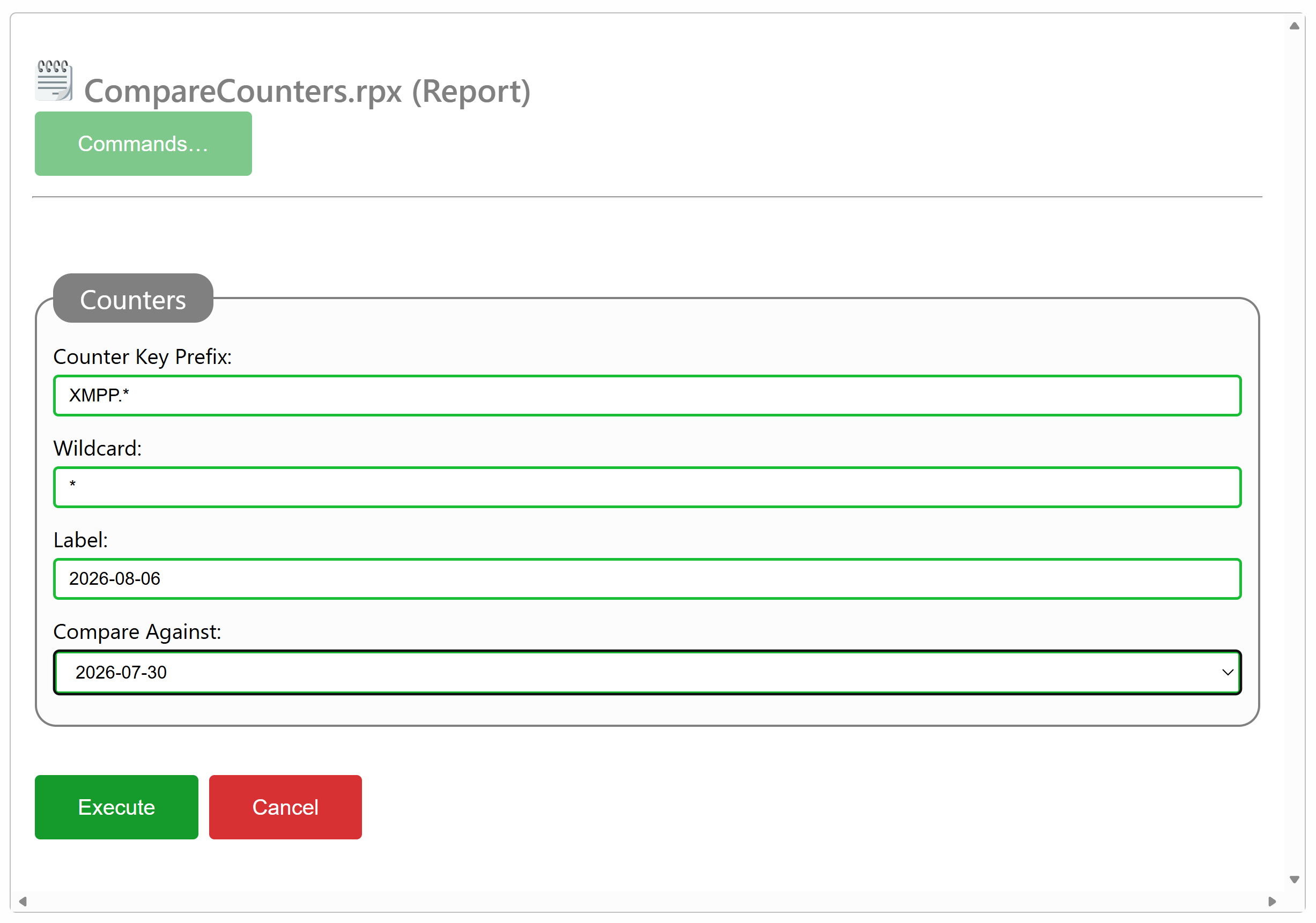
The Compare Counters report lets you compare two sets of samples with each other, taken at separate times. It also lets you label each sample. You select the counters you wish to compare by providing a Counter Key Prefix, which may or may not use a wildcard, which you can also specify. In the following example XMPP-related counters will be compared:
For our example, a brief reduced result set might look as follows:
Billable Counters Report
Certain counters could be referred to as billable counters, meaning, that some operators might base billing on server usage based on these counters. A special counter-comparison report exists that selects these counters automatically. All the operator needs to do is provide label names, to get suitable comparisons.
Example of what counters are included in the billable counters report, see the following report result comparing two snapshots close to each other (leaving results as zero):
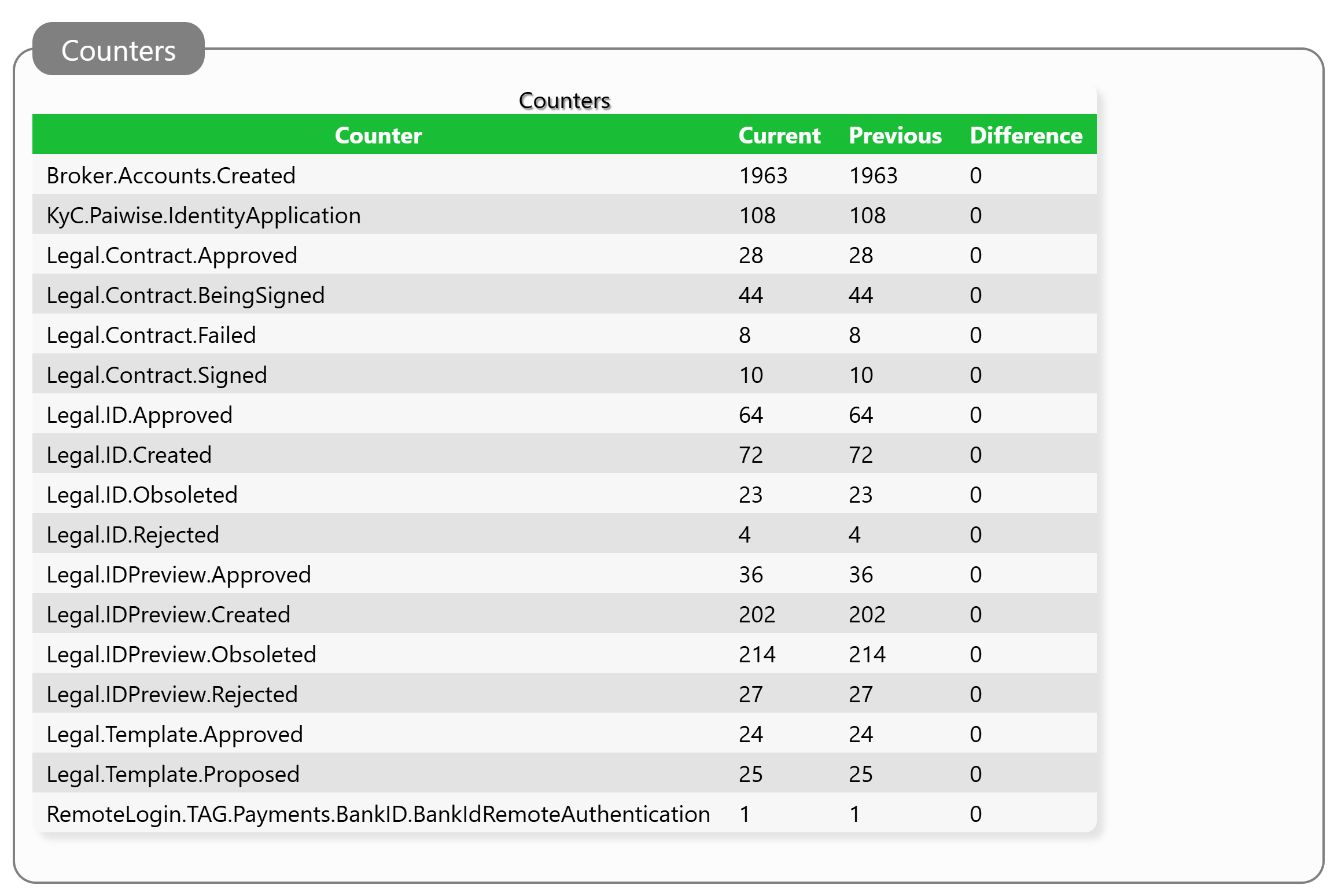
The counters that appear have the following meaning:
| Counter | Description |
|---|---|
Broker.Accounts.Created |
Number of XMPP accounts created. |
KyC.*.IdentityApplication |
Number of identity applications analyzed by KyC service * |
Legal.Contract.Approved |
Number of smart contracts approved. |
Legal.Contract.BeingSigned |
Number of contracts receiving digital signatures. |
Legal.Contract.Failed |
Number of contracts that failed. |
Legal.Contract.Signed |
Number of contracts reaching the signed state. |
Legal.ID.Approved |
Number of Identity Applications that were approved. |
Legal.ID.Created |
Number of Identity Applications that were created. |
Legal.ID.Obsoleted |
Number of Identity Applications that were obsoleted. |
Legal.ID.Rejected |
Number of Identity Applications that were rejected. |
Legal.IDPreview.Approved |
Number of Identity Preview Applications that where approved. |
Legal.IDPreview.Created |
Number of Identity Preview Applications that where created. |
Legal.IDPreview.Obsoleted |
Number of Identity Preview Applications that where obsoleted. |
Legal.IDPreview.Rejected |
Number of Identity Preview Applications that where rejected. |
Legal.Template.Approved |
Number of smart contract templates that were approved. |
Legal.Template.Proposed |
Number of smart contract templates that were proposed. |
RemoteLogin.* |
Number of Remote Login API authentication initiations made using authentication service *. |
Posts by user
No more posts authored by the user could be found. You can go back to the main view by selecting Home in the menu above.