Quick-Login from LegalLab
LegalLab has been updated to allow users to perform Quick-Login. In the Legal ID tab, a new button appears when selecting a Legal Identity that is Approved: Quick-Login.
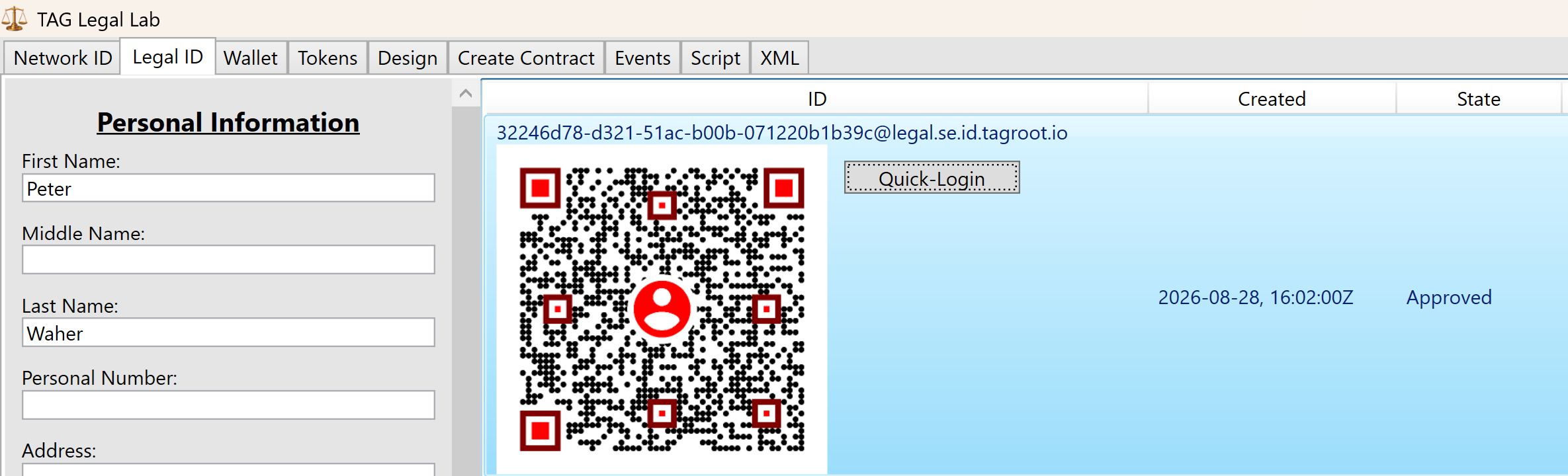
Click on this button, and then enter a tagsign URI. This URI can be taken from a Quick-Login form, by right-clicking the QR-code and selecting Copy Link.
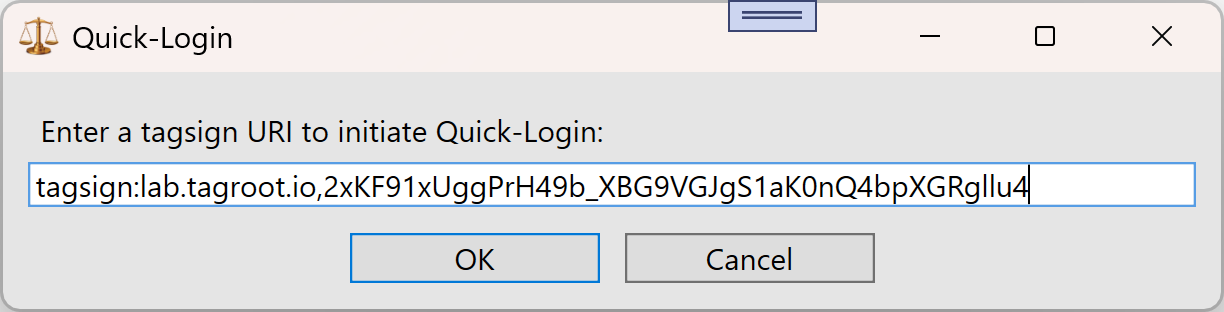
After successfully entering the URI, a petition request is sent from the Neuron® hosting the Quick-Login form. The petition is shown in a simple dialog in LegalLab:
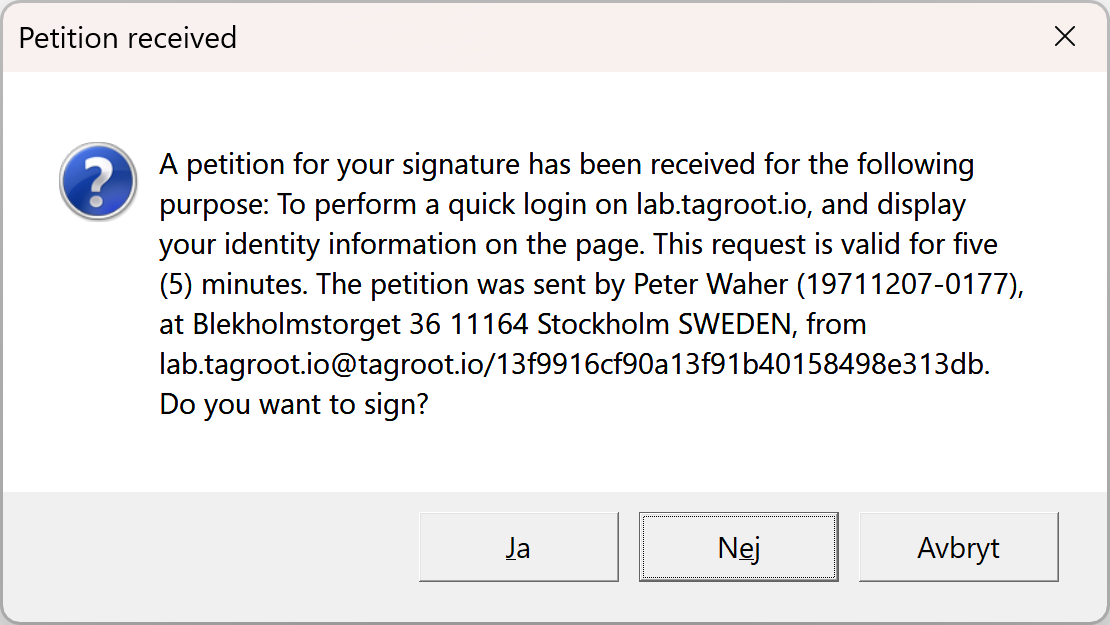
Click the Yes button to approve and sign the petition. The Neuron accepts the signature and you are logged in.
Using Agent API to execute reports on a Neuron
Reports on the Neuron® exist in its Harmonized IoT Architecture, under a separate Data Source with ID Reports. An XMPP user with sufficient privileges can access these reports and execute them. A web client can use the Agent API, and its extension Agent Things API to do the same. This article outlines the steps to take to execute a report, using the Agent API:
The web client can use an Agent Account on any Neuron, provided the Neuron can connect to the Neuron hosting the report to be executed.
Login calling the Agent API
AgentAPI.Account.Login()method. The web client will receive a token that it can use in subsequent requests. If you use the Javascript implementation provided, this is done automatically.You can check the account has sufficient privileges by calling the
AgentAPI.Things.Concentrator.GetAllDataSources()method after logging in. You need to specify theJIDof the Neuron (as a client to its Parent Neuron). If access is granted, theReportsdata source should be listed in the response. If not, check the following:The Agent account must have presence subcription approved to Neuron JID that you provide. If such a presence subscription does not exist, a presence subscription request will be sent automatically, and a
ForbiddenerrorAccount lacks an approved presence subscription.will be returned.To check presence subscriptions on the Neuron, go to the
Rosterpage from the Administrative menu, and accept the request shown there.Example:

Presence Subscription Request in Roster If the Agent account is on the same Neuron, the XMPP account must have sufficient privileges. To be able to view and administer the Reports data source, and any reports they contain, the user must have the
Source.Reports.*privilege (or as a privilege regular expression:+Source\.Reports\..*). (Refine this privilege if a subset is required.).If the Agent account is on another Neuron, a user account with the user name equal to the Bare JID of the Agent account needs to be created. This user account needs to be assigned a Role having the required privileges mentioned above.
You can call the
AgentAPI.Things.Concentrator.GetRootNodes()andAgentAPI.Things.Concentrator.GetChildNodes()to browse available report folders and the reports they contain. You need to use the sameJIDargument as above, and set the Source ID argument toReports. If you want to retrieve reports from a report folder, for instance, you need to call theAgentAPI.Things.Concentrator.GetChildNodes()resource, and also provide the ID of the reports folder node. If you want to get information about a particular node (or test if you have the correct Node ID), you can call theAgentAPI.Things.Concentrator.GetNode()resource.By calling the
AgentAPI.Things.Concentrator.GetNodeCommands()you receive a list of commands the account has access to. There are three types of commands:Simple,ParametrizedandQuery.Simplecommands are just executed; they do not need parameters, and they do not return any information apart from if the execution succeeded or failed. AParametrizedcommand, requires the user to provide parameter values before it can be executed. LikeSimplecommands, they provide no detailed responses apart from executing successfully or not. AQuerytakes parameters for input, but also return a response (which may be long) asynchronously, as the query is being executed.If you are going to execute a Parametrized command or query, you need to provide parameters. If you do not know what parameters are expected from the command, you can get a parameter form by calling the
AgentAPI.Things.Concentrator.GetCommandParameters()method.Depending on type of command, you then call the
AgentAPI.Things.Concentrator.ExecuteSimpleCommand()method, if it is aSimplecommand, theAgentAPI.Things.Concentrator.ExecuteParametrizedCommand()method, if it is aParametrizedcommand, or theAgentAPI.Things.Concentrator.ExecuteQuery()method, if it is aQuery.
Agent Reports API
The Agent API has an extension simplifying the execution of reports: The Agent Reports API. With some knowledge of where and how reports are accessed, it reduces access to reports to the following steps (some are the same as above, some are simplifications):
The web client can use an Agent Account on any Neuron, provided the Neuron can connect to the Neuron hosting the report to be executed.
Login calling the Agent API
AgentAPI.Account.Login()method. The web client will receive a token that it can use in subsequent requests. If you use the Javascript implementation provided, this is done automatically.To get a list of reports you have access to, call
AgentAPI.Reports.GetReports(). It will return an array of the report identifiers you can view.Get parameters for the report by calling
AgentAPI.Reports.GetReportParameters(). You can edit or reduce this set of parameters (or provide your own parameter object if you know the parameters you need for the next step), for the next step.You execute a report by calling
AgentAPI.Reports.ExecuteReport()method. It collects all asynchronous responses, and returns a consolidated report result.
OAUTH 2 support in the Neuron
The Neuron® now supports OAUTH 2.0, and can be used as an authorization server in OAUTH-compliant systems (from build 2026-07-13). The OAUTH 2 environment available in the Neuron includes the following resources:
- An authorization resource (RFC 6749) at
/oauth/authorize. - A token resource (RFC 6749) at
/oauth/token. - A dynamic client registration resource (RFC 7591 and RFC 7592), supporting both public and confidential client registrations, at
/oauth/register. - A management resource for dynamic client registrations (RFC 7591) at
/oauth/registration. - A resource providing support for the device authorization flow (RFC 8628) at
/oauth/device - A token introspection resource, in accordance with RFC 7662 at
/oauth/introspect - A server OAUTH meta-data resource (RFC 8414) at
/.well-known/oauth-authorization-serverallowing external parties a way to find available resources and features. - A resource providing meta-data for protected resources (RFC 9728) at
/.well-known/oauth-protected-resource.
Apart from the resources defined, there are some notable features and extensions that are supported, and merit mentioning:
- Proof Key for Code Exchange by OAuth Public Clients (PKCE) (RFC 7636), securing the authorization flow.
- Support for refresh tokens (RFC 6749)
- Implicit token generation from traditional Neuron authentication, or Mutual TLS (mTLS).
- OAUTH clients (services) that want to use the Neuron as an OAUTH authorization server, should register themselves with the Neuron using the dynamic client registration interface, and provide a human-readable name, logotype and corresponding URIs for more information.
- Dynamic login forms generated by the OAUTH environment are generated first in Markdown, and then transformed to HTML before being returned to the user. This allows opertors of the Neuron to customize the look & feel of the login form, by customizing the
MasterOAuth.mdfile available in the web root folder. The dynamic form is embedded in this master file, before being rendered as HTML.
Authentication, scopes and privileges are related as follows:
- Scopes in OAUTH, are translated into Privileges in the Neuron, having the prefix
OAUTH.Scope.followed by the scope, where colons (:) are replaced by periods (.). - An external party can authenticate itself with the OAUTH environment, and be authorized to receive a JWT token, which it should provide in subsequent requests using a
Bearertoken in anAuthorizationHTTP header. - Dynamic client registrations, and clients that authenticate themselves using credentials for an XMPP account, have no privileges by default. Attempts to authorize access to specific scopes using such accounts will be rejected.
- Administrative user accounts will have the privileges provided to them via the Roles defined for the corresponding user accounts.
Dynamic client registration has been integrated into the Neuron using the following principles:
- The Neuron enables dynamic client registration by creating an API Key with the name
OAUTH. If there is no such API key on the Neuron, dynamic client registration is not permitted. - A remote endpoint can register at most 2 clients (public or confidential).
- Registered clients receive a corresponding XMPP account with the same
client_id. These accounts are disabled for XMPP communication by default, but can be enabled manually. (Future work may provide a mechanism to automatically enable such accounts, by validating e-mail and/or phone numbers provided in client registration.)
Security Note: You can limit access to OAUTH using the Web-Application Firewall (or WAF), by restricting access to any resource that starts with /oauth/.
Queue Event Sink
A new Event Sink is available (from build 2026-06-01), permitting the temporary storage of logged events into a local Queue. Queues perist elements in an encrypted manner, and processes them in accordance with FIFO (First-In-First-Out) order. A queue frees processes that generate items from processes that process these items. They can work in different paces, and can be updated/run on different times.
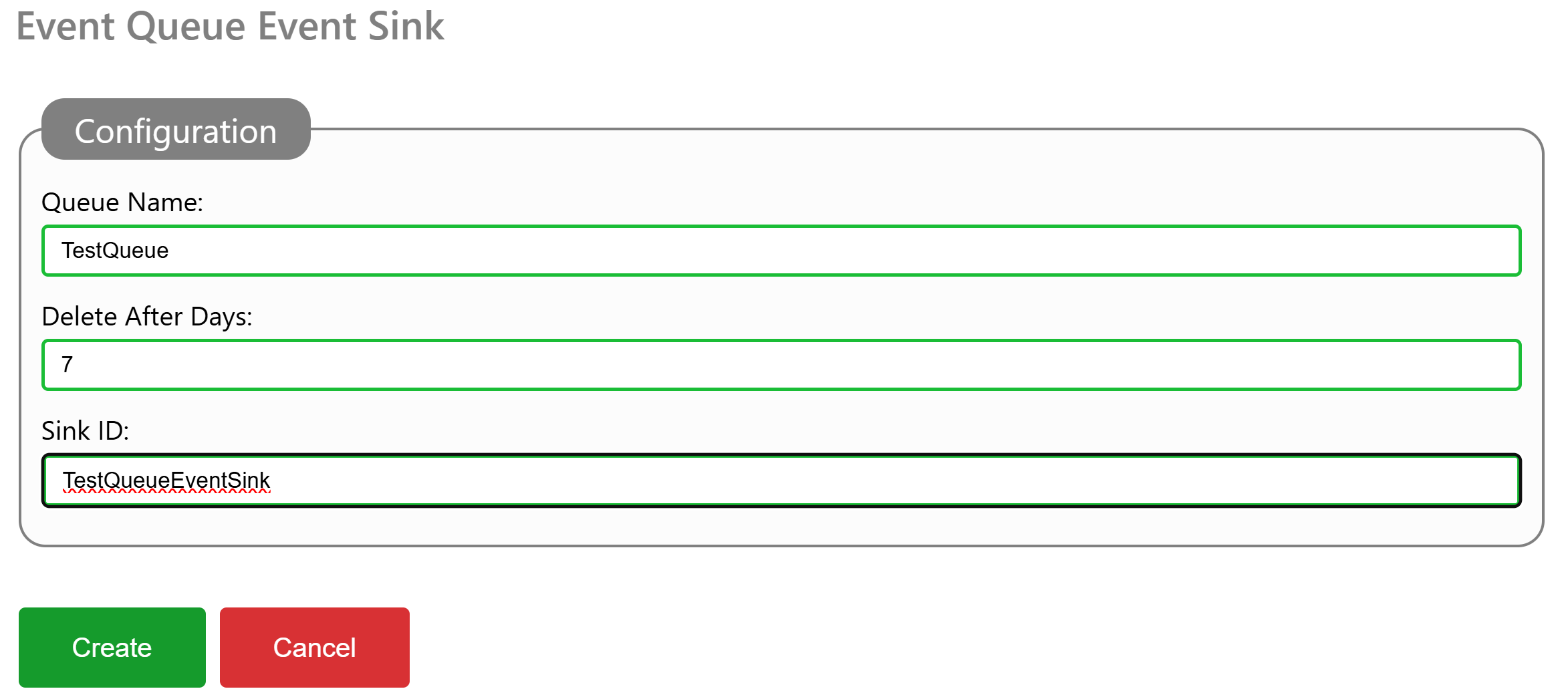
To configure a Queue for temporary encrypted storage, you add a EventQueue element to the event sinks section of the Gateway.config file, and restart the Neuron®. You can also add such an event sink, via the administrative interface, under Sources & Nodes, and the Gateway configuration source.
You need to provide a Name for the Queue. This Name is later used to dequeue items that have been enqueued by the event sink. You also provide a number of days which items are stored in the queue. Older items are regularly purged from the queue, to avoid it growing indefinitely. A Sink ID must also be provided. This ID appears in event logs, in case something related to the event sink needs reporting.
To access enqueued events, you can either dequeue them in local services, or use the Queue API. If you are using Postman, there’s a public repository containing a Postman collection for the Queue API.
#new, #features, #neuron, #gateway, #events, #eventsink, #api, #queue
HTTP Proxy
The TAG Neuron® now (from build 2026-05-12) has a new API: A generic HTTP Proxy at /HttpProxy. It allows clients to use the broker as a proxy to access resources on the Internet. This can be useful in multiple cases, for instance in environments where access to certain resources are limited, but the Neuron has free access. One such example is accessing HTTP-only resources from a smart phone environment, which requires use of HTTPS, and the remote web server does not have HTTPS enabled. (This is the case for certain ICAO Certificate Revocation Lists for example.)
Authentication
The HTTP Proxy resource requires authentication. The reason for this restriction is to avoid the broker to become a point for third parties to commit cyber-crime. The resource supports multiple form of authentication: Normal WWW-Authenticate is supported, mTLS (for brokers where this is enabled), or JWT Bearer tokens. Session login is also supported. This makes it possible to integrate the resource in web pages hosted by the Neuron.
JWT Bearer tokens is usedful in environments based on XMPP, where access to HTTP-based resources is required, but restricted by the operating system, such as the Neuro-Access smart phone app.
Since the app, in this case, has an XMPP connection to the broker, it can get a JWT token from the broker by using the HttpxClient class (HTTP over XMPP) in the Waher.Networking.XMPP.HTTPX library. Calling the GetJwtToken method returns a JWT token that can be used to make HTTP requests to the broker, authenticated as the XMPP account.
Redirecting HTTP links
If using InternetContent in the Waher.Content library to access content on the Internet, you can redirect HTTP-only links to a custom resource by providing an event handler to the WebGetter.HttpUriEventHandler event. Take the opportunity to provide a new URI in the event arguments, redirecting the request to the HTTP proxy resource of the Nueron to which the client is connected using XMPP. You also need to add the Bearer token to the Request headers available in the event arguments. The URI itself is then URI encoded and added as a sub-path to the /HttpProxy/ resource.
Example
The first step is to get a JWT token from the Neuron, identifying the XMPP connection the client has. We use the HttpxClient method GetJwtTokenAsync method, providing the number of seconds we want the token to be valid:
string Token = await this.httpxClient.GetJwtTokenAsync(60);
We then create an event handler to reroute HTTP-only requests to the HTTP proxy on the Neuron to which the client is using, using HTTPS. Creating an event handler for this purpose is simple (replacing DOMAIN in the example with the domain of the Neuron). We also need to add the Bearer JWT token by using an Authorization header:
private static void ViaProxy(object Sender, HttpUriEventArgs e)
{
	e.Uri = new Uri("https://DOMAIN/HttpProxy/" + WebUtility.UrlEncode(e.Uri.ToString()));
	e.Request.Headers.Add("Authorization", "Bearer " + Token);
}
We need to assign the event handler to the event:
WebGetter.HttpUriEventHandler += ViaProxy;
Later, when we do not need to redirect HTTP requests any longer, we need to unregister it:
WebGetter.HttpUriEventHandler -= ViaProxy;
While the event handler is registered, any access to web resources using HTTP, by using the static InternetContent class, will be seamlessly redirected to the HTTP proxy. Example:
ContentResponse Response = await InternetContent.GetAsync(
	new Uri("http://example.org/"),
	new KeyValuePair<string, string>("Accept", HtmlCodec.DefaultContentType));
Posts tagged #features
No more posts with the given tag could be found. You can go back to the main view by selecting Home in the menu above.