Identity Application Attributes
A client that is about to apply for a new Legal Identity on a Neuron® can first retrieve Identity Application Attributes expected and supported by the Neuron. This query has been refactored (as of 2026-08-21), and now also lists available Identity Authenticator Applications and Peer Review Services installed on the Neuron.
The previous query provided information about if peer-review was enabled on the Neuron, and what fields are expected to be validated in peer-review applications. As of version 2026-08-21, the following information has been added:
The time the client has to review and upload a signed identity review document as an attachment to a recently approved Legal Identity.
What Identity Authenticator Services are available, and what Required and Optional properties and attachments each one processes.
What Peer Review Services are available, and what Required and Optional properties and attachments each one processes.
Note: A Peer Review Service is different from normal Peer Review in that normal peer review is supposedly a connected client that performs the peer review, while a Peer Review Service is a service running on the Neuron that either performs the peer review, or delegates the request to a peer. A Peer Review Service distinguishes itself from an Identity Authenticator Service, in that a Peer Review Service cannot by itself approve or reject an application. It only provides a review of the application. An Identity Authenticator Service on the other hand can approve or reject an application or parts of an application, by itself.
Special Considerations
Some properties are treated differently from the others. These are:
If
FULLNAMEis shown, the application can still be processed ifFIRSTand/orMIDDLEand/orLASTare used. Some services may listFIRSTandLASTas required andMIDDLEas optional, while others only listFULLNAMEas required. They can both be used. One just enphasizes that the First and Last names have semantical meaning, and may affect the validation, while usingFULLNAMEshows only the full name is validated, not the individual parts.The
PREIVEWproperty can both mean the Identity Application is made with the preview-flag set totrue, and/or thePREVIEWproperty be present in the list of properties.When listing attachments, only the expected local file name is presented, not the file extension (which may vary). For instance, the image file names (
ProfilePhoto,IdCardFront,IdCardBack,Passport,DriverLicenseFrontandDriverLicenseBack) can have any image file extension recognized by the Neuron, for example, the common.jpgor.png. The XML DocumentNFCattachment must have.xmlfile extension.
XMPP Example
Following is an XMPP example illustrating the request, and the type of response that can be returned.
XMPP Request:
<iq id="19" type="get" to="legal.lab.tagroot.io" from="peter@lab.tagroot.io/bf5330f0004696bea34cf03a93f1cad4">
   <applicationAttributes xmlns="urn:nfi:iot:leg:id:1.0"/>
</iq>
XMPP Response follows. Notice the new reviewTimeout attribute, and the new <authenticator> and <peerReviewService> elements:
<iq xmlns="jabber:client" id="19" type="result" to="peter@lab.tagroot.io/bf5330f0004696bea34cf03a93f1cad4" from="legal.lab.tagroot.io">
  <idApplicationAttributes xmlns="urn:nfi:iot:leg:id:1.0" reviewTimeout="3600" peerReview="true" nrReviewers="2" nrPhotos="1" iso3166="true">
    <required>FIRST</required>
    <required>LAST</required>
    <required>PNR</required>
    <required>REGION</required>
    <required>COUNTRY</required>
    <authenticator id="Paiwise.ShuftiPro" name="Shufti-Pro Identity Authenticator" fqn="Paiwise.ShuftiPro.KycService">
      <properties>
        <required>FIRST</required>
        <required>LAST</required>
        <required>COUNTRY</required>
        <required>PNR</required>
        <optional>MIDDLE</optional>
        <optional>ADDR</optional>
        <optional>ADDR2</optional>
        <optional>ZIP</optional>
        <optional>AREA</optional>
        <optional>REGION</optional>
        <optional>CITY</optional>
        <optional>BDAY</optional>
        <optional>BMONTH</optional>
        <optional>BYEAR</optional>
        <optional>GENDER</optional>
        <optional>NATIONALITY</optional>
      </properties>
      <attachments>
        <required>ProfilePhoto</required>
        <optional>IdCardFront</optional>
        <optional>IdCardBack</optional>
        <optional>Passport</optional>
        <optional>DriverLicenseFront</optional>
        <optional>DriverLicenseBack</optional>
      </attachments>
    </authenticator>
    <authenticator id="TAG.Identity.NeuroAccess" name="Neuro-Access Identity Authenticator" fqn="TAG.Identity.NeuroAccess.NeuroAccessAuthenticator">
      <properties>
        <required>JID</required>
        <required>COUNTRY</required>
        <optional>EMAIL</optional>
        <optional>PHONE</optional>
      </properties>
      <attachments/>
    </authenticator>
    <authenticator id="TAG.Identity.Serpro" name="Serpro Identity Authenticator" fqn="TAG.Identity.Serpro.ServiceModule">
      <properties>
        <required>FULLNAME</required>
        <required>COUNTRY</required>
        <required>PNR</required>
        <optional>ADDR</optional>
        <optional>ADDR2</optional>
        <optional>ZIP</optional>
        <optional>AREA</optional>
        <optional>REGION</optional>
        <optional>CITY</optional>
        <optional>BDAY</optional>
        <optional>BMONTH</optional>
        <optional>BYEAR</optional>
        <optional>GENDER</optional>
        <optional>NATIONALITY</optional>
      </properties>
      <attachments>
        <required>ProfilePhoto</required>
      </attachments>
    </authenticator>
    <authenticator id="TAG.Identity.TravelDocuments" name="ICAO eMRTD Identity Authenticator" fqn="TAG.Identity.TravelDocuments.ServiceModule">
      <properties>
        <required>PREVIEW</required>
        <required>FIRST</required>
        <required>LAST</required>
        <required>COUNTRY</required>
        <optional>MIDDLE</optional>
        <optional>BDAY</optional>
        <optional>BMONTH</optional>
        <optional>BYEAR</optional>
        <optional>AGEABOVE</optional>
        <optional>GENDER</optional>
        <optional>NATIONALITY</optional>
        <optional>PNR</optional>
      </properties>
      <attachments>
        <required>ProfilePhoto</required>
        <required>NFC</required>
      </attachments>
    </authenticator>
    <authenticator id="AgeAuthenticator" name="Age Authenticator" fqn="Waher.Service.IoTBroker.Legal.Identity.Age.AgeAuthenticator">
      <properties>
        <required>BYEAR</required>
        <required>BMONTH</required>
        <required>BDAY</required>
        <required>AGEABOVE</required>
      </properties>
      <attachments/>
    </authenticator>
    <authenticator id="PreviewAuthenticator" name="Preview Authenticator" fqn="Waher.Service.IoTBroker.Legal.Identity.Previews.PreviewAuthenticator">
      <properties>
        <required>PREVIEW</required>
      </properties>
      <attachments/>
    </authenticator>
    <peerReviewService id="TAG.Identity.FeaturedPeerReviewers.FeaturedPeerReviewersProvider" name="Featured Peer Reviewers" fqn="TAG.Identity.FeaturedPeerReviewers.FeaturedPeerReviewersProvider">
      <properties>
        <required>FIRST</required>
        <required>LAST</required>
        <required>PNR</required>
        <required>COUNTRY</required>
        <required>REGION</required>
        <optional>MIDDLE</optional>
        <optional>CITY</optional>
        <optional>AREA</optional>
        <optional>ZIP</optional>
        <optional>ADDR</optional>
        <optional>ADDR2</optional>
        <optional>NATIONALITY</optional>
        <optional>GENDER</optional>
        <optional>BDAY</optional>
        <optional>BMONTH</optional>
        <optional>BYEAR</optional>
      </properties>
      <attachments>
        <required>ProfilePhoto</required>
        <optional>IdCardFront</optional>
        <optional>IdCardBack</optional>
        <optional>Passport</optional>
        <optional>DriverLicenseFront</optional>
        <optional>DriverLicenseBack</optional>
      </attachments>
    </peerReviewService>
    <peerReviewService id="TAG.Payments.BankID" name="Bank ID" iconUrl="https://lab.tagroot.io/BankID/Images/BankID_logo.svg" iconWidth="620" iconHeight="515" fqn="TAG.Payments.BankID.BankIdServiceProvider">
      <properties>
        <required>COUNTRY</required>
        <required>PNR</required>
      </properties>
      <attachments/>
    </peerReviewService>
  </idApplicationAttributes>
</iq>
This article is being written
Using the Neuron to send and receive e-mail
The TAG Neuron® supports multiple protocols, among them, both the XMPP Protocol and the SMTP protocol. In XMPP, clients have accounts on brokers, and connect to their broker to connect to the federated XMPP network. Addresses in XMPP are called Jabber IDs, or JIDs for short. The Bare JIDs look like e-mail addresses, in the form: ACCOUNT@DOMAIN. Once connected, the connection is assigned a Full JID, in the form ACCOUNT@DOMAIN/RESOURCE.
The account can also interact using the SMTP protocol. This means, the client can send and receive e-mail seamlessly using the same XMPP account. E-mail messages sent to the account gets forwarded as messages to the client. The client can send messages back. The Neuron converts the messages into e-mail messages and forwards them to the recipient using the SMTP protocol.
There are some differences between how SMTP works on the Neuron®, and if you are using a traditional SMTP Server:
In order to be able to communicate with a client on the Neuron, you need a presence subscription. This is a requirement on XMPP. SMTP does not have such a feature, which is one of the reasons why e-mail is so ripe with spam. The Neuron enforces presence subscription on e-mail as well. It does this via a squence of e-mails that are sent to anyone trying to send e-mail to an account on the Neuron. The e-mails will contain links allowing the sender to request presence. Once the client has accepted the presence subscription, the sender of the e-mail gets notified that it is able to send e-mail to the indented recipient.
Outgoing messages are accumulated for a short time before being sent. In XMPP, messages are sent instantaneously to the recipient. If you use a chat program and write multiple rows of text, you want all rows to get into the same e-mail message. For this reason, the Neuron accumulates outgoing text messages, and forwards them once there is a silence for a minute (or an hour has passed since the first row).
Incoming e-mail messages are sent to the client encoded in multiple ways. First, the text of the message is extracted, and forwarded as Markdown, HTML and/or plain text, as appropriate. The original contents of the e-mail is also forwarded, but can only be processed by the client, if it understands a separate e-mail extensions. This means, you can e-mail to any XMPP client, using text content. But only XMPP clients understanding the e-mail extension will be able to receive more advanced concepts, such as embedded attachments, etc.
Outgoing messages from XMPP clients are typically of a simpler nature: Plain text, HTML and/or Markdown. This is transformed into multi-formatted e-mail messages accordingly, before being sent.
Example
As an example, following is a short interaction between an e-mail client using a hotmail e-mailing address, and an XMPP client, using an XMPP address. No Mail Relay was used on the Neuron used in this example.
Sending first mail to XMPP client
First step, that will trigger the approval process (or white-listing process), is to send an e-mail to the XMPP client you want to interact with. The contents of this e-mail will be ignored; it can be anything. When the Neuron receives this e-mail, it will check the roster of the recipient to see if an approved presence subscription is available. If not, it will immediately return an e-mail stating this fact.
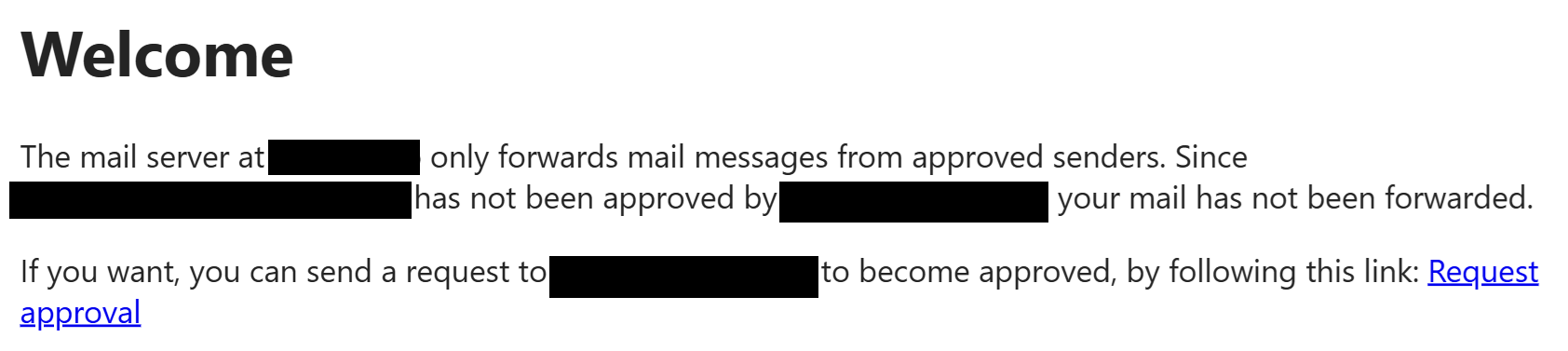
Sending a presence subscription request
The e-mail will contain a link the recipient can click on, that will send a presence subscription request to the intended recipient. The link is cryptographically protected with the associated e-mail, and the sender and receiver identities. The sender will also receive an e-mail confirmation that the presence subscription request was sent to the recipient.

Receiving presence subscription acceptance confirmation
If the recipient accepts the presence subscription request, a two new e-mails are sent to the original sender, confirming this fact, and instructing the sender that it is now allowed to send e-mails to the intended recipient. The first e-mail shows the sender has been added to the white-list (roster in XMPP). The second, that the presence subscription request has been accepted.


Testing e-mail <-> XMPP link
The e-mail sender should now be able to communicate with the XMPP recipient. Sending a simple test message to the recipient, will make the text in the e-mail appear as a chat message in the XMPP client. The XMPP client can respond using chat, just as if the sender was another XMPP-client.
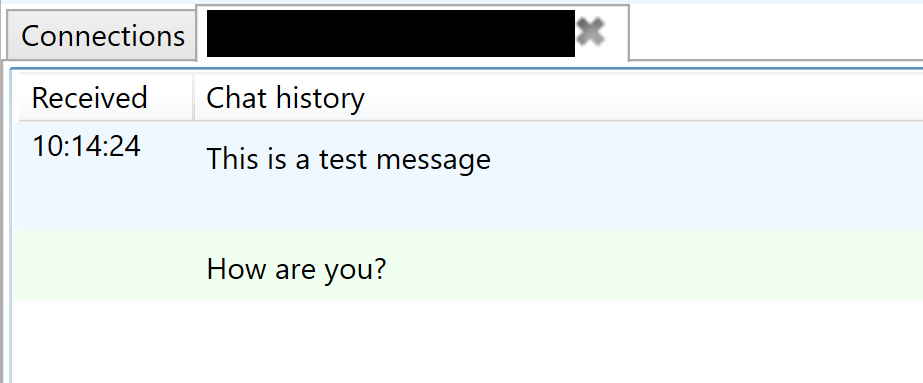
The XMPP chat response is transformed into an e-mail and sent to the original sender.

Troubleshooting SMTP Communication
A lot of problems can occur in SMTP communication. The principle reason is lack of cybersecurity in the original specifications, and security added on-top, as people became aware of threats. There is often no clear indication as to why there are problems sending or receiving e-mail.
The principle resource for troubleshooting e-mail is SMTP communication logs. These are stored in the SMTP subfolder in the Neuron Program Data Folder. The SMTP folder contains subfolders with communication logs for different senders and recipients. Input logs (containing information about incoming messages) are stored separately from Output logs (containing information about outgoing messages). To distinguish the two, Input logs are suffixed with IN and Output logs are suffixed with OUT.
When troubleshooting incoming logs, you need to know from where the message will be received. This can be learned from DNS SPF entries. When troubleshooting outgoing logs, you need to know to where the message will be sent. This can be learned from DNS MX entries. There are tools online for finding out both. You can also use the Script engine on the Neuron to get the relevant DNS records.
Also, you need to ensure the DNS has been configured correctly for the Neuron, especially those related to Sender Policy Framework SPF (TXT records) and Mail Exchange (MX records).
HTTP-XMPP Bridge
The IoTBridgeHttp repository provides an IoT bridge between external devices that POST sensor data to the bridge using HTTP, for use in closed intra-networks or enterprise networks, or the public Internet, and the harmonized XMPP-based Neuro-Foundation network, for open and secure cross-domain interoperation on the Internet.
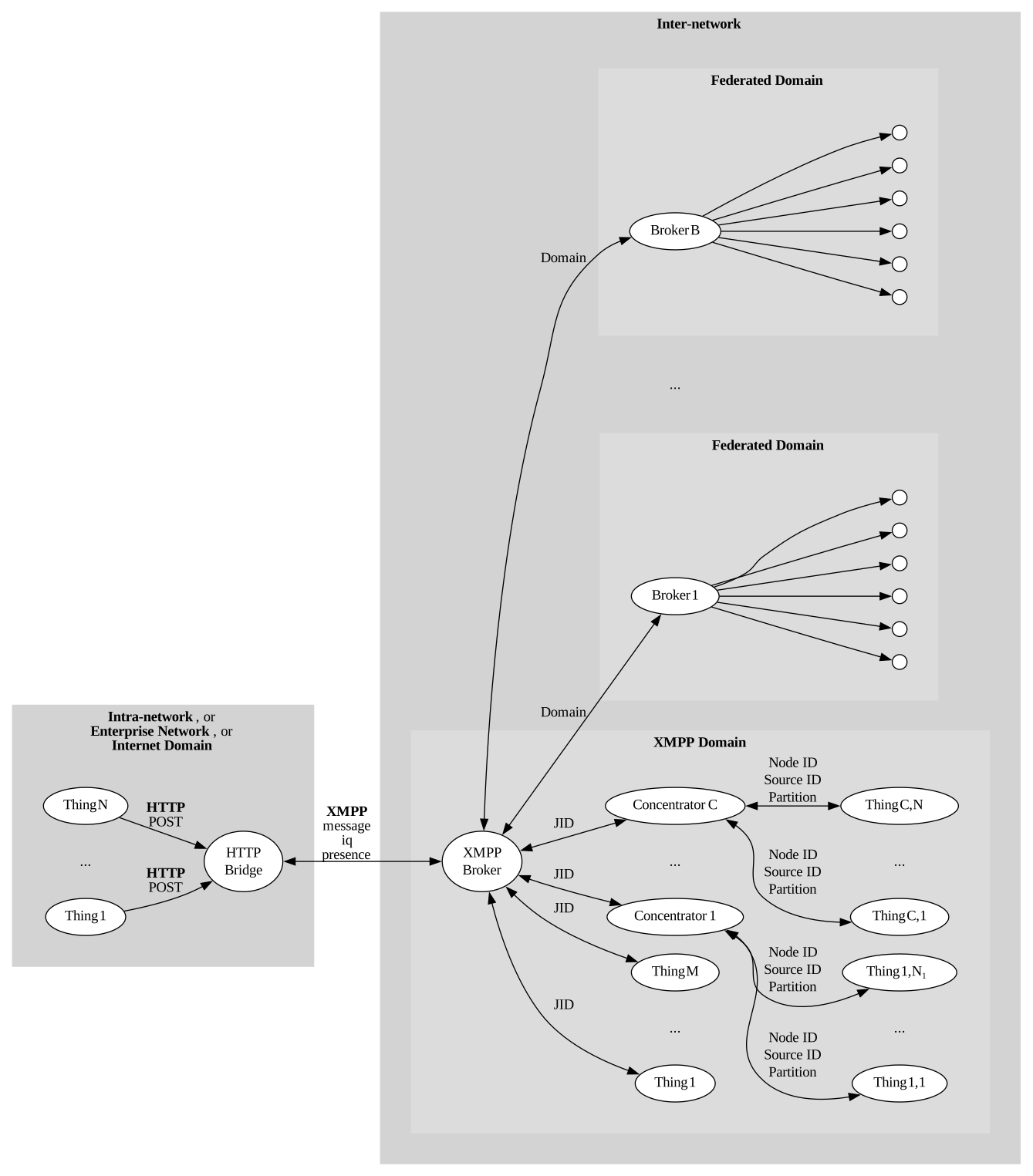
To run the bridge, you need access to an XMPP broker that supports the Neuro-Foundation extensions. You can use the TAG Neuron for XMPP.
Running and configuring the bridge
The code is written using .NET Standard, and compiled to a .NET Core console application that can be run on most operating systems. Basic configuration is performed using the console interface during the first execution, and persisted. You can also provide the corresponding configuration using environment variables, making it possible to run the bridge as a container. If an environmental variable is missing, the user will be prompted to input the value on the console.
| Environmental Variable | Type | Description |
|---|---|---|
XMPP_HOST |
String | XMPP Host name |
XMPP_PORT |
Integer | Port number to use when connecting to XMPP (default is 5222) |
XMPP_USERNAME |
String | User name to use when connecting to XMPP. |
XMPP_PASSWORD |
String | Password (or hashed password) to use when connecting to XMPP. Empty string means a random password will be generated. |
XMPP_PASSWORDHASHMETHOD |
String | Algorithm or method used for password. Empty string means the password is provided in the clear. |
XMPP_APIKEY |
String | API Key. If provided together with secret, allows the application to create a new account. |
XMPP_APISECRET |
String | API Secret. If provided together with key, allows the application to create a new account. |
REGISTRY_COUNTRY |
String | Country where the bridge is installed. |
REGISTRY_REGION |
String | Region where the bridge is installed. |
REGISTRY_CITY |
String | City where the bridge is installed. |
REGISTRY_AREA |
String | Area where the bridge is installed. |
REGISTRY_SRTEET |
String | Street where the bridge is installed. |
REGISTRY_STREETNR |
String | Street number where the bridge is installed. |
REGISTRY_BUILDING |
String | Building where the bridge is installed. |
REGISTRY_APARTMENT |
String | Apartment where the bridge is installed. |
REGISTRY_ROOM |
String | Room where the bridge is installed. |
REGISTRY_NAME |
String | Name associated with bridge. |
REGISTRY_LOCATION |
Boolean | If location has been completed. (This means, any location-specific environment variables not provided, will be interpreted as intensionally left blank, and user will not be prompted to input values for them. |
JWT_SECRET |
String | Secret used to create JWT tokens. If not provided, a random secret will be created. |
X509_FILENAME |
String | File name to X.509 certificate to use. If not provided, HTTPS will not be enabled. |
X509_PASSWORD |
String | Password to X.509 certificate. |
HTTP_PORT |
Integer | Port number to use for unencrypted HTTP. (default is 80) |
HTTPS_PORT |
Integer | Port number to use for encrypted HTTPS. (default is 443) |
ADMIN_NAME |
String | Administrator User name. |
ADMIN_PASSWORD |
String | Administrator Password. |
USER_COUNT |
Integer | Number of users to create. (Default is 0, which will trigger manual input of users.) |
USER_N_NAME |
String | User name for user N. (where N is a number between 1 and USERS_COUNT) |
USER_N_PASSWORD |
String | Password for user N. (where N is a number between 1 and USERS_COUNT) |
USER_N_PRIVILEGE |
String | Regular expression specifying the privilege or privileges held by the user. (Default is Admin.SensorData.Post.) |
Running in a Docker container
You can run the bridge in a Docker container. When doing so it is important to either configure all settings via the environment variables, or to redirect stdin and allocate a TTY. You do this using the -it switch to docker run. For example:
docker run -it iot-bridge-http
Setting up persistent storage
Persistent storage is required to store configuration, as well as data about the bridge, its nodes, and ownerships, etc. You can do this by mapping the local folder /var/lib/IoT Gateway to a Volume when creating the container.
Using an environment file
You can provide environment variables using an environment file. Create a new text file based on the IoTBridgeHttp.env file in the repository. Set the values you want to provide, and then use the --env-file switch when creating the container. For example:
docker run -it --env-file IoTBridgeHttp.env -v /my/local/folder:/var/lib/IoT\ Gateway iot-bridge-http
Note: If providing credentials, make sure the file is not accessible by others, and make sure it is not checked in to any repository. An alternative to providing credentials in an environment file, is to enable standard and terminal input, and provide it via the prompt (see above).
Claiming ownership of bridge
Once the bridge has been configured, it will generate an iotdisco URI, and save it to its programd data folder. It will also create a file with extension .url, containing a shortcut with the iotdisco URI inside. A .png file with a QR code will also be generated. All three files contain information about the bridge, and allows the owner to claim ownership of it. This can be done by using the Neuro-Access App. This app is also downloadable for Android and iOS. You scan the QR code (or enter it manually), and claim the device. Once the device is claimed by you, you will receive notifications when someone wants to access the deice. They will only be able to access it with the owner’s permission. For more information, see:
Configuring the bridge
The bridge can be configured in detail by a client that implements the concentrator interface. Concentrators consist of data sources, each containing tree structures of nodes. Nodes may be partitioned into partitions, which permits the nesting of subsystems seamlessly into container systems. Each node can be of different types, and have different properties and underlying functionality. They can each implement then sensor interface and actuator interface.
You can use the Simple IoT Client to configure concentrators and their nodes in detail. An initial setup is done using the initial configuration of the bridge. The client is also available in the IoTGateway repository, in the Clients folder.
Node Types
The bridge includes several different node types that can be used to configure its operation:
The
Local Web Server Noderepresents the local web server in the gateway. This node hosts the web service that allows external devices toPOSTsensor data to the bridge. It also acts as the root node for the subtree of nodes representing devices that receive sensor data via HTTPPOSTrequests.The
XMPP Brokermaintains a connection to an XMPP Broker. It allows the bridge to connect to other entities on the federated network and communicate with them. It supports communication with remote standalone sensors and actuators, as well as remote concentrators embedding devices into data sources and nodes. Such concentrators can be bridges to other protocols and networks.Note: The bridge has a client-to-server connection by default, setup during initial configuration. Through this connection, the bridge acts as a concentrator. Through the use of
XMPP Brokernodes you can setup additional XMPP connections to other brokers. In these cases the bridge will only act as a client, to connect to remove devices for the purposes of interacting with them.IP Hostnodes allow you to monitor network hosts accessible from the bridge.Scriptnodes allow you to create nodes with custom script logic. They can be used to interface bespoke devices in the network accessible from the bridge, for example.Virtualnodes are placeholders where external logic (or script logic) can aggregate information in a way that makes them accessible by others in the federated network.
API Reference
The local web service registers a series of web resources that external devices can use. Following is a brief overview, with references for more details.
Sensor Data Receptor
The Sensor data receptor resource /ReportSensorData is used by external devices to POST sensor data to the bridge. The device needs to authenticate with the bridge, before it can be authorized to access this resource. The device can use different mechanisms to authenticate itself with the bridge:
- Use of Mutual TLS (mTLS). This requires the bridge to be configured with a certificate.
- Use of
WWW-Authenticateweb login procedure. - Use of JSON Web Tokens (JWT) Bearer tokens for authentication. This requires the device to login first using the Login resource (see below).
For details on how the resource works, see the Sensor Data Receptor API endpoint on lab.tagroot.io as an example. The same page can be viewed on the bridge, once it is up and running.
Login resource
The Login resource /Login is used to login to the bridge. If successful, a Bearer JWT token is returned. External devices need to login to the bridge before they can POST sensor data to it. A token is valid for 1 hour. The external device needs to renew the token by loggin in again, if accessing the bridge for a longer period of time.
Input payload is expected to be a JSON object of the following type.
{
	"UserName": Required(Str(PUserName)),
	"PasswordHash": Required(Str(PPasswordHash)),
	"Nonce": Required(Str(PNonce))
}
The response is a JSON object of the following type:
{
	"Ok": Required(Bool(POK)),
	"Message": Required(Str(PMessage)),
	"Token": Optional(Str(PToken))
}
See the Web login procedure article for more details on how to compute the password hash and nonce values, and use them in the login process.
Root folder resource
The Root folder resource /. If no specific resource above is referenced, the default is to look for a file resource in the Root folder, and return it if found. This allows you to host custom web content on the bridge.
Web Page
The root resource / makes a temporary redirection to /Index.md, which is the landing page for the bridge. It contains basic information about the bridge, as well as a login-mechanism to access the setup of the bridge. Once logged in, you can manually edit roles and users.
Security
The HTTP bridge supports multiple levels of security:
Access to things published on the federated network is protected by provisioning. When the gateway starts, it generates an
iotdiscoURI, which can be used to claim ownership of the device. Once claimed, the owner receives notifications when someone wants to access the device, and can decide whether to allow access or not.The bridge supports a set of users and roles, each defining a set of privileges. During first start, the initial users and roles are configured. This can be done either using environment variables, or by providing input on the console. An administrator user is created, which will have all privileges. Once the bridge is up and running, the administrator can login and configure existing users and roles, and create new ones.
A Web-Application Firewall (WAF) is included in the bridge. The administrator can configure the WAF to block or allow access to specific resources, based on application-level rules. This can be used to restrict access to certain pages (such as the administrative pages) to certain IPs, for instance, or rate-limit access to certain resources, such as sensor-data publication resrouces.
The Web-Application Firewall is defined in the
WAF.xmlfile. It is an XML file that needs to validate against thehttps://waher.se/Schema/WAF.xsdnamespace. The default version restricts access to the administration pages to local area network IP addresses.
Modbus-XMPP Bridge
The IoTBridgeModbus repository provides an IoT bridge between devices connected to Modbus, for use in closed intra-networks or enterprise networks, and the harmonized XMPP-based Neuro-Foundation network, for open and secure cross-domain interoperation on the Internet.
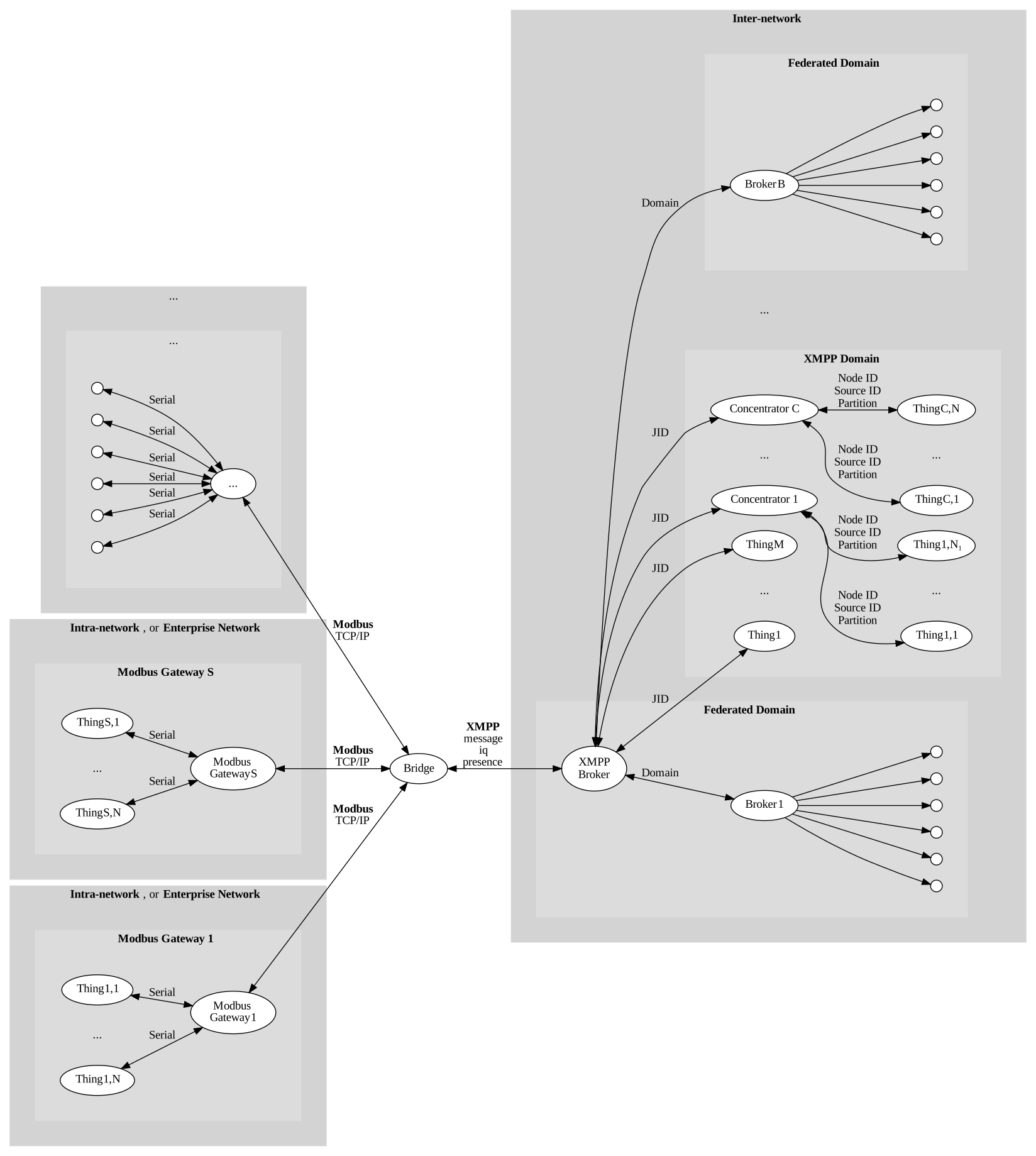
To run the bridge, you need access to both a Modbus gateway, and an XMPP broker, that supports the Neuro-Foundation extensions. You can use the TAG Neuron for XMPP.
Running and configuring the bridge
The code is written using .NET Standard, and compiled to a .NET Core console application that can be run on most operating systems. Basic configuration is performed using the console interface during the first execution, and persisted. You can also provide the corresponding configuration using environment variables, making it possible to run the bridge as a container. If an environmental variable is missing, the user will be prompted to input the value on the console.
| Environmental Variable | Type | Description |
|---|---|---|
XMPP_HOST |
String | XMPP Host name |
XMPP_PORT |
Integer | Port number to use when connecting to XMPP (default is 5222) |
XMPP_USERNAME |
String | User name to use when connecting to XMPP. |
XMPP_PASSWORD |
String | Password (or hashed password) to use when connecting to XMPP. Empty string means a random password will be generated. |
XMPP_PASSWORDHASHMETHOD |
String | Algorithm or method used for password. Empty string means the password is provided in the clear. |
XMPP_APIKEY |
String | API Key. If provided together with secret, allows the application to create a new account. |
XMPP_APISECRET |
String | API Secret. If provided together with key, allows the application to create a new account. |
MODBUS_HOST |
String | Modbus Gateway Host name |
MODBUS_TLS |
String | If TLS encryption is to be used when connecting to the Modbus gateway. |
MODBUS_PORT |
String | Port number to use when connecting to the Modbus gateway (default is 502). |
REGISTRY_COUNTRY |
String | Country where the bridge is installed. |
REGISTRY_REGION |
String | Region where the bridge is installed. |
REGISTRY_CITY |
String | City where the bridge is installed. |
REGISTRY_AREA |
String | Area where the bridge is installed. |
REGISTRY_SRTEET |
String | Street where the bridge is installed. |
REGISTRY_STREETNR |
String | Street number where the bridge is installed. |
REGISTRY_BUILDING |
String | Building where the bridge is installed. |
REGISTRY_APARTMENT |
String | Apartment where the bridge is installed. |
REGISTRY_ROOM |
String | Room where the bridge is installed. |
REGISTRY_NAME |
String | Name associated with bridge. |
REGISTRY_LOCATION |
Boolean | If location has been completed. (This means, any location-specific environment variables not provided, will be interpreted as intensionally left blank, and user will not be prompted to input values for them. |
Claiming ownership of bridge
Once the bridge has been configured, it will generate an iotdisco URI, and save it to its programd data folder. It will also create a file with extension .url, containing a shortcut with the iotdisco URI inside. A .png file with a QR code will also be generated. All three files contain information about the bridge, and allows the owner to claim ownership of it. This can be done by using the Neuro-Access App. This app is also downloadable for Android and iOS. You scan the QR code (or enter it manually), and claim the device. Once the device is claimed by you, you will receive notifications when someone wants to access the deice. They will only be able to access it with the owner’s permission. For more information, see:
Configuring the bridge
The bridge can be configured in detail by a client that implements the concentrator interface. Concentrators consist of data sources, each containing tree structures of nodes. Nodes may be partitioned into partitions, which permits the nesting of subsystems seamlessly into container systems. Each node can be of different types, and have different properties and underlying functionality. They can each implement then sensor interface and actuator interface.
You can use the Simple IoT Client to configure concentrators and their nodes in detail. An initial setup is done using the initial configuration of the bridge. The client is also available in the IoTGateway repository, in the Clients folder.
Node Types
The bridge includes several different node types that can be used to configure its operation:
The
Modbus Gatewaymaintains a connection to a Modbus Gateway using TCP/IP, and converts requests into binary Modbus TCP/IP communication.The
XMPP Brokermaintains a connection to an XMPP Broker. It allows the bridge to connect to other entities on the federated network and communicate with them. It supports communication with remote standalone sensors and actuators, as well as remote concentrators embedding devices into data sources and nodes. Such concentrators can be bridges to other protocols and networks.Note: The bridge has a client-to-server connection by default, setup during initial configuration. Through this connection, the bridge acts as a concentrator. Through the use of
XMPP Brokernodes you can setup additional XMPP connections to other brokers. In these cases the bridge will only act as a client, to connect to remove devices for the purposes of interacting with them.IP Hostnodes allow you to monitor network hosts accessible from the bridge.Scriptnodes allow you to create nodes with custom script logic. They can be used to interface bespoke devices in the network accessible from the bridge, for example.Virtualnodes are placeholders where external logic (or script logic) can aggregate information in a way that makes them accessible by others in the federated network.
MQTT-XMPP Bridge
The IoTBridgeMqtt repository provides an IoT bridge between devices connected to MQTT, for use in closed intra-networks or enterprise networks, and the harmonized XMPP-based Neuro-Foundation network, for open and secure cross-domain interoperation on the Internet.
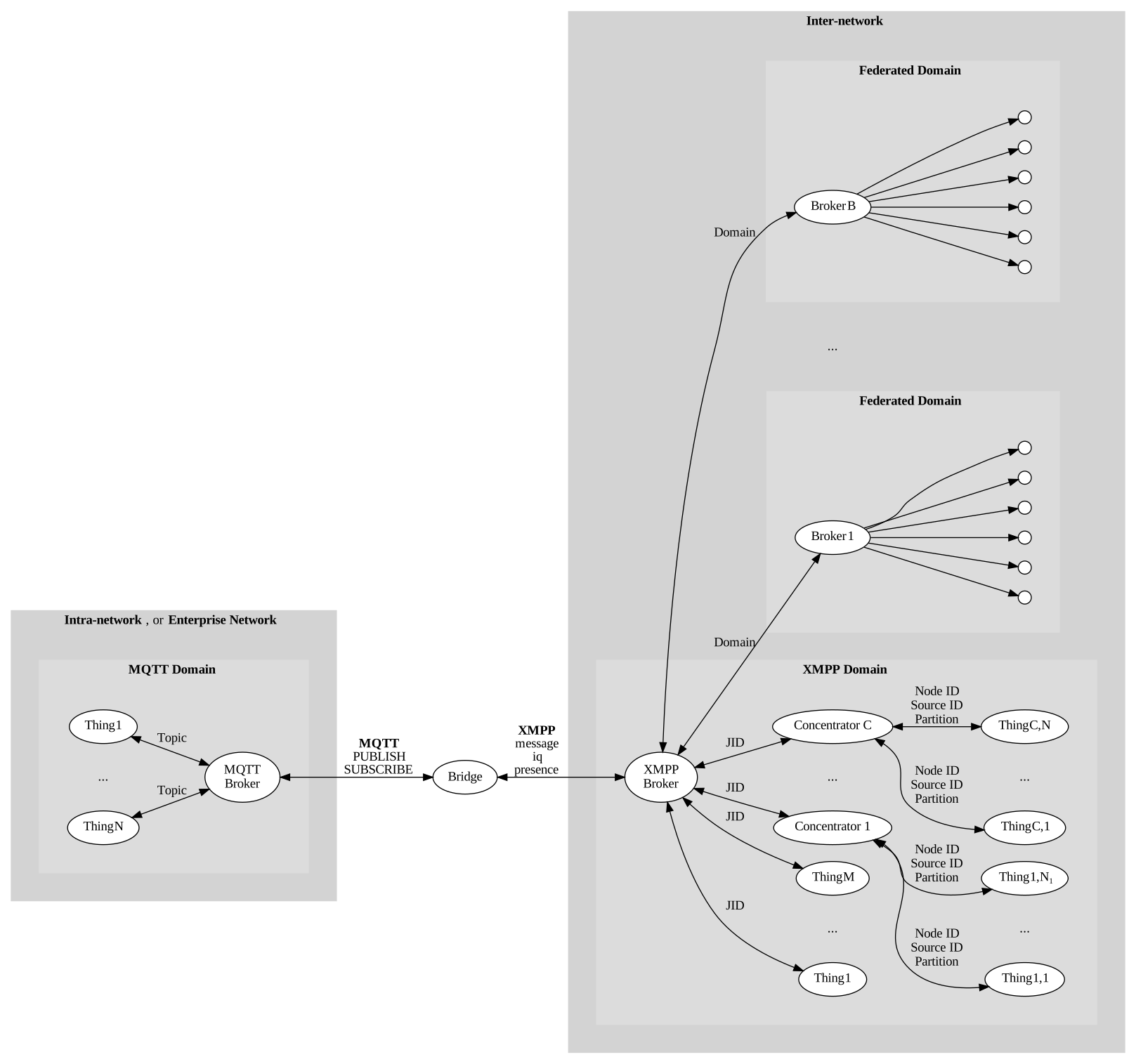
To run the bridge, you need access to both an MQTT broker, and an XMPP broker, that supports the Neuro-Foundation extensions. You can use the Mosquitto broker for MQTT, and the TAG Neuron for XMPP.
Running and configuring the bridge
The code is written using .NET Standard, and compiled to a .NET Core console application that can be run on most operating systems. Basic configuration is performed using the console interface during the first execution, and persisted. You can also provide the corresponding configuration using environment variables, making it possible to run the bridge as a container. If an environmental variable is missing, the user will be prompted to input the value on the console.
| Environmental Variable | Type | Description |
|---|---|---|
XMPP_HOST |
String | XMPP Host name |
XMPP_PORT |
Integer | Port number to use when connecting to XMPP (default is 5222) |
XMPP_USERNAME |
String | User name to use when connecting to XMPP. |
XMPP_PASSWORD |
String | Password (or hashed password) to use when connecting to XMPP. Empty string means a random password will be generated. |
XMPP_PASSWORDHASHMETHOD |
String | Algorithm or method used for password. Empty string means the password is provided in the clear. |
XMPP_APIKEY |
String | API Key. If provided together with secret, allows the application to create a new account. |
XMPP_APISECRET |
String | API Secret. If provided together with key, allows the application to create a new account. |
MQTT_HOST |
String | MQTT Host name |
MQTT_TLS |
String | If TLS encryption is to be used when connecting to the MQTT broker. |
MQTT_PORT |
String | Port number to use when connecting to MQTT (default is 1883 for unencrypted MQTT and 8883 for encrypted MQTT). |
MQTT_USERNAME |
String | User name to use when connecting to MQTT. Can be empty if no user credentials are provided. |
MQTT_PASSWORD |
String | Password to use when connecting to XMPP. Can be empty if no user credentials are provided. |
REGISTRY_COUNTRY |
String | Country where the bridge is installed. |
REGISTRY_REGION |
String | Region where the bridge is installed. |
REGISTRY_CITY |
String | City where the bridge is installed. |
REGISTRY_AREA |
String | Area where the bridge is installed. |
REGISTRY_SRTEET |
String | Street where the bridge is installed. |
REGISTRY_STREETNR |
String | Street number where the bridge is installed. |
REGISTRY_BUILDING |
String | Building where the bridge is installed. |
REGISTRY_APARTMENT |
String | Apartment where the bridge is installed. |
REGISTRY_ROOM |
String | Room where the bridge is installed. |
REGISTRY_NAME |
String | Name associated with bridge. |
REGISTRY_LOCATION |
Boolean | If location has been completed. (This means, any location-specific environment variables not provided, will be interpreted as intensionally left blank, and user will not be prompted to input values for them. |
Claiming ownership of bridge
Once the bridge has been configured, it will generate an iotdisco URI, and save it to its programd data folder. It will also create a file with extension .url, containing a shortcut with the iotdisco URI inside. A .png file with a QR code will also be generated. All three files contain information about the bridge, and allows the owner to claim ownership of it. This can be done by using the Neuro-Access App. This app is also downloadable for Android and iOS. You scan the QR code (or enter it manually), and claim the device. Once the device is claimed by you, you will receive notifications when someone wants to access the deice. They will only be able to access it with the owner’s permission. For more information, see:
Configuring the bridge
The bridge can be configured in detail by a client that implements the concentrator interface. Concentrators consist of data sources, each containing tree structures of nodes. Nodes may be partitioned into partitions, which permits the nesting of subsystems seamlessly into container systems. Each node can be of different types, and have different properties and underlying functionality. They can each implement then sensor interface and actuator interface.
You can use the Simple IoT Client to configure concentrators and their nodes in detail. An initial setup is done using the initial configuration of the bridge. The client is also available in the IoTGateway repository, in the Clients folder.
Node Types
The bridge includes several different node types that can be used to configure its operation:
The
MQTT Brokermaintains a connection to an MQTT Broker, and allows the bridge to subcribe to content published on topics, as well as publish content to topics on the broker. The topic hierarchy will be modelled usingMQTT Topicnodes, or derivatives. Common data types are recognized and parsed. You can read each topic individually, or a parent topic, and receive information from all child topics, as field values.The
XMPP Brokermaintains a connection to an XMPP Broker. It allows the bridge to connect to other entities on the federated network and communicate with them. It supports communication with remote standalone sensors and actuators, as well as remote concentrators embedding devices into data sources and nodes. Such concentrators can be bridges to other protocols and networks.Note: The bridge has a client-to-server connection by default, setup during initial configuration. Through this connection, the bridge acts as a concentrator. Through the use of
XMPP Brokernodes you can setup additional XMPP connections to other brokers. In these cases the bridge will only act as a client, to connect to remove devices for the purposes of interacting with them.IEEE 1451nodes are derivatives of MQTT nodes, and implement support for theIEEE 1451family of standards, of whichIEEE 1451.1.6manages communication over MQTT.IP Hostnodes allow you to monitor network hosts accessible from the bridge.Scriptnodes allow you to create nodes with custom script logic. They can be used to interface bespoke devices in the network accessible from the bridge, for example.Virtualnodes are placeholders where external logic (or script logic) can aggregate information in a way that makes them accessible by others in the federated network.
Posts tagged #xmpp
No more posts with the given tag could be found. You can go back to the main view by selecting Home in the menu above.