Breaking Point
Simulation that gradually increases load on services using different protocols, to investiate possible breakpoints and limits in underlying technologies.
This report has been automatically generated by ComSim by Trust Anchor Group. The following command-line arguments where used to execute the simulation and generate the report:
ComSim.exe -d ComSim\bin\Debug\netcoreapp2.2\Data -e -i Examples\BreakingPoint.xml -s ComSim\bin\Debug\netcoreapp2.2\Sniffers -st Examples\SnifferXmlToHtml.xslt -mr C:\ProgramData\IoT Gateway\Root\Reports\BreakingPoint.md -xr C:\ProgramData\IoT Gateway\Root\Reports\BreakingPoint.xml -master /Master.md -l C:\ProgramData\IoT Gateway\Root\Reports\BreakingPoint.Log.xml -lt C:\ProgramData\IoT Gateway\Transforms\EventXmlToHtml.xslt -af ComSim\bin\Release\netcoreapp2.2\publish
Description
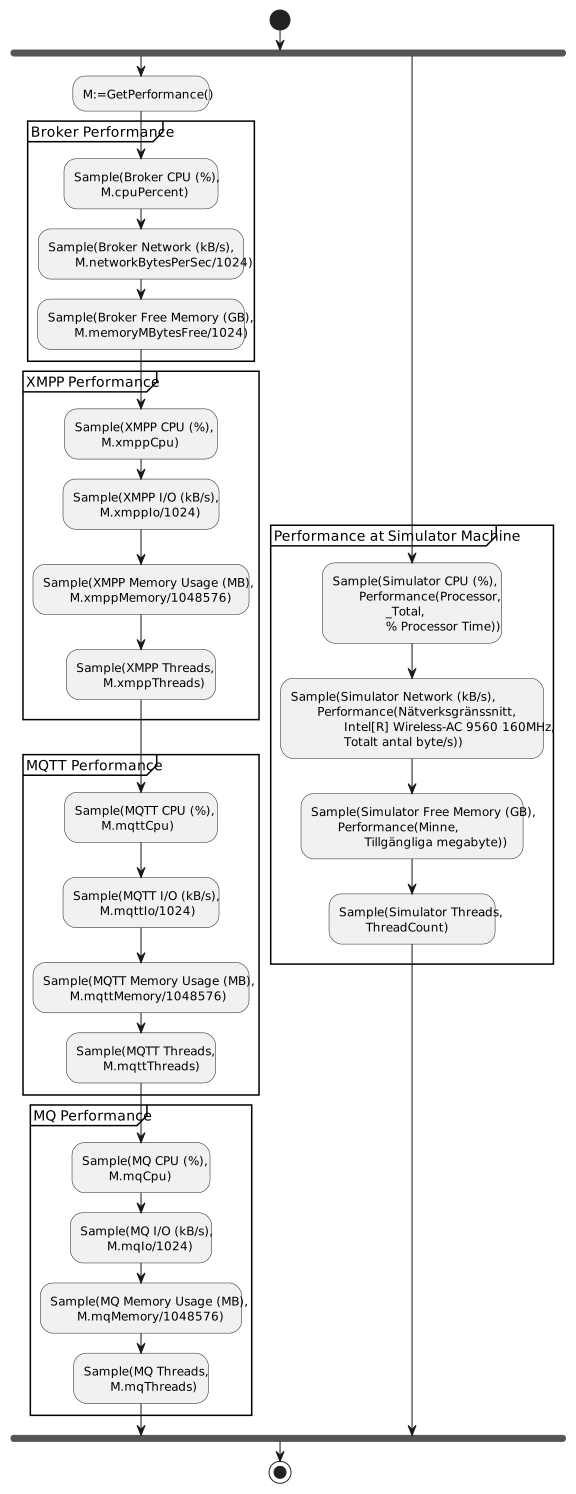
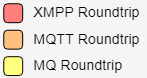
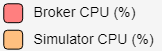
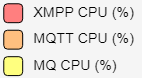
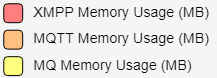
Simulates 100 XMPP clients, 100 (unencrypted, unauthorized) MQTT clients and 100 MQ clients (50 MQ queues, 2 clients for each queue, one putting, one getting) exchanging XML messages randomly between each other (users of the same protocol) during 10 minutes. Frequency is gradually increased over time to test technical limits. Messages are distributed using the Normal Distribution, with three different means, one for each protocol. During the simulation, performance metrics are sampled for local simulator performance, broker performance, and for the individiual protocol service performances.
Preparation
XMPP
The XMPP Client accounts are created automatically, if the broker being used supports XEP-0077: In-Band Registration. The account registration process can be protected using keys and secrets, if the broker supports XEP-0348: Signing Forms.
MQTT
The MQTT protocol is tested by installing the mosquitto MQTT broker on the same machine as the XMPP broker. It is important the brokers reside on the same machine, so network performance metrics can be compared.
MQ
The IBM MQ Server also needs to be installed on the same machine as the XMPP broker, to make metrics comparable. There are tutorials on how to setup an IBM MQ server properly on Windows.
Note: The script setting up the IBM MQ Server described in the tutorial mentioned above, has been modified, and is available in the Examples folder under then name mq-dev-config.mqsc. It does the same things as the script in the tutorial, except it adds an additional 100 queues to be used for the simulation. To make sure the users have access to these queues, you also need to execute the following IBM MQ command at the command prompt:
setmqaut -m QM1 -n SIM.** -t queue -g mqclient +put +get +browse +inq
MQ authentication of clients is done against local machine users (or AD users). You will therefore need to create user accounts on the local machine (or the Active Directory). To generate a CSV file with user names and random passwords, you can use the following script:
N:=100;
i:=1..N;
UserName:="SimUser"+i;
Password:=[foreach n in i do Base64Encode(RandomBytes(24))];
M:=[join("UserName",UserName),join("Password",Password)]T;
SaveFile(M,"Users.csv")
Once the CSV file has been generated, you can create user accounts matching user accounts on the server hosting the IBM MQ service using the following Power Shell script:
$Users = Import-csv Users.csv

foreach ($User in $Users)
{
	$UserName = $User.UserName
	$Password = $User.Password

	if (!(Get-LocalUser -Name $UserName))
	{
		New-LocalUser -AccountNeverExpires -Name $UserName -Password (convertto-securestring $Password -AsPlainText -Force) -PasswordNeverExpires
	}

	Add-LocalGroupMember -Group mqclient -Member $UserName
	}
Note: The CSV file should also be imported to the simulator using the -ik MqPassword Users.csv option.
Note 2: The above script assume you have setup the MQ broker using the tutorial mentioned above. This tutorial provides authorization to queues based on membership in the local mqclient group. More detailed authorization schemes are possible. You need to adapt the script accordingly.
Performance Counters
For this simulation to work, the ProtocolPerformance.ws Web Service script available in the Examples folder in the ComSim project, needs to be copied to the /Reports web folder of the TAG Neuron or the IoT Gateway web server. For readability, the web service script contais the following script, executed when the resource is accessed:
{
    "cpuPercent":PerformanceCounters.GetCounter("Processor","_Total","% Processor Time").NextValue(),
    "networkBytesPerSec":PerformanceCounters.GetCounter("Network Interface","Microsoft Hyper-V Network Adapter","Bytes Total/sec").NextValue(),
    "memoryMBytesFree":PerformanceCounters.GetCounter("Memory","Available MBytes").NextValue(),
    "xmppCpu":PerformanceCounters.GetCounter("Process","Waher.IoTGateway.Svc","% Processor Time").NextValue(),
    "mqttCpu":PerformanceCounters.GetCounter("Process","mosquitto","% Processor Time").NextValue(),
    "mqCpu":PerformanceCounters.GetCounter("Process","amqrmppa","% Processor Time").NextValue(),
    "xmppMemory":PerformanceCounters.GetCounter("Process","Waher.IoTGateway.Svc","Working Set - Private").NextValue(),
    "mqttMemory":PerformanceCounters.GetCounter("Process","mosquitto","Working Set - Private").NextValue(),
    "mqMemory":PerformanceCounters.GetCounter("Process","amqrmppa","Working Set - Private").NextValue(),
    "xmppIo":PerformanceCounters.GetCounter("Process","Waher.IoTGateway.Svc","IO Other Bytes/sec").NextValue(),
    "mqttIo":PerformanceCounters.GetCounter("Process","mosquitto","IO Other Bytes/sec").NextValue(),
    "mqIo":PerformanceCounters.GetCounter("Process","amqrmppa","IO Other Bytes/sec").NextValue(),
    "xmppThreads":PerformanceCounters.GetCounter("Process","Waher.IoTGateway.Svc","Thread Count").NextValue(),
    "mqttThreads":PerformanceCounters.GetCounter("Process","mosquitto","Thread Count").NextValue(),
    "mqThreads":PerformanceCounters.GetCounter("Process","amqrmppa","Thread Count").NextValue()
}
General
| Time units | |
|---|---|
| Simulation Duration: | 1 min |
| Time Base: | Start of Simulation |
| Time Unit: | 1 s |
| Time Cycle: | 10 min |
| Bucket Time: | 1 s |
| Start Date: | 2020-10-13 |
| Start Time: | 13:35:17 |
| End Date: | 2020-10-13 |
| End Time: | 13:36:17 |
Activities

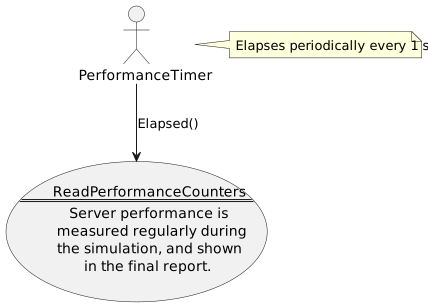
ReadPerformanceCounters
This activity measures server performance, by calling a web service and reporting the measured values in the returning JSON object back to the simulator.


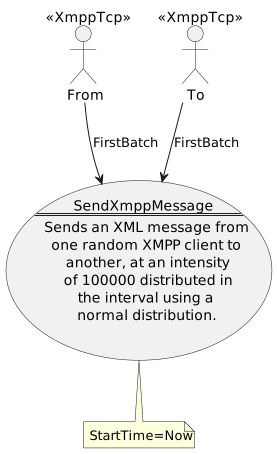
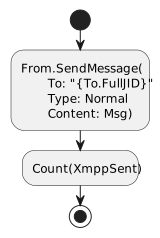
SendXmppMessage
This activity sends an XML message to a random XMPP recipient.


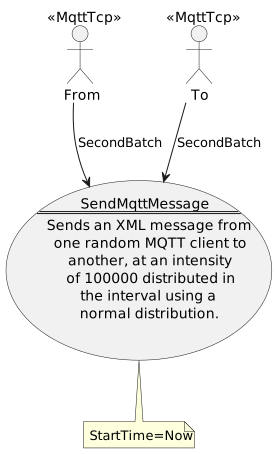
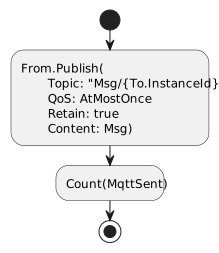
SendMqttMessage
This activity sends an XML message to a random MQTT recipient.


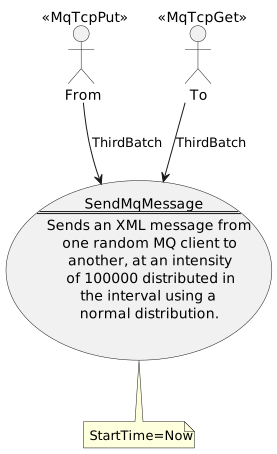
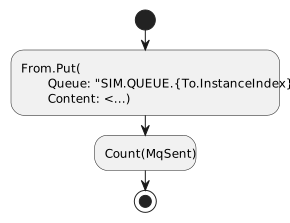
SendMqMessage
This activity sends an XML message to a random MQ recipient.
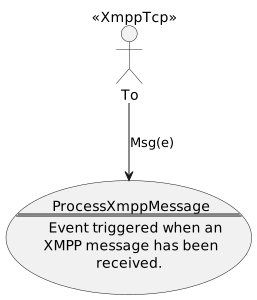
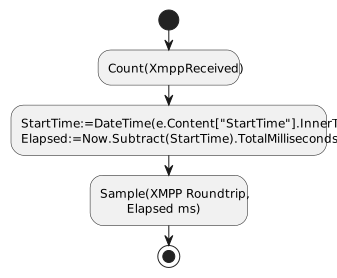
ProcessXmppMessage
Processes a received XMPP message.


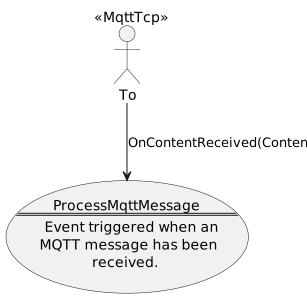
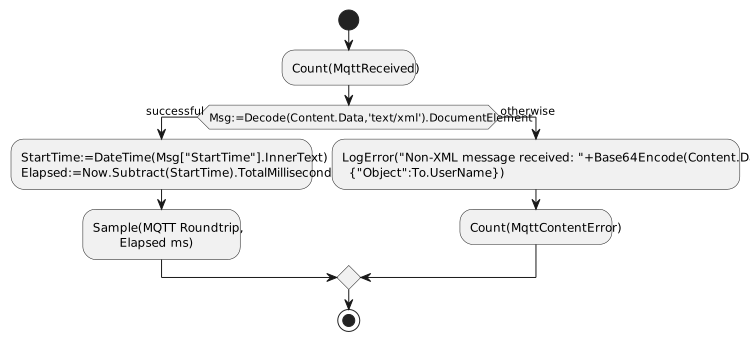
ProcessMqttMessage
Processes a received MQTT message.


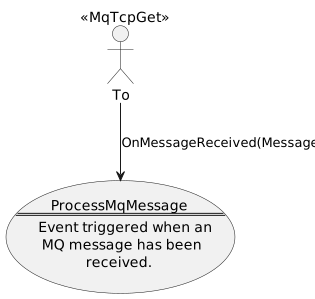
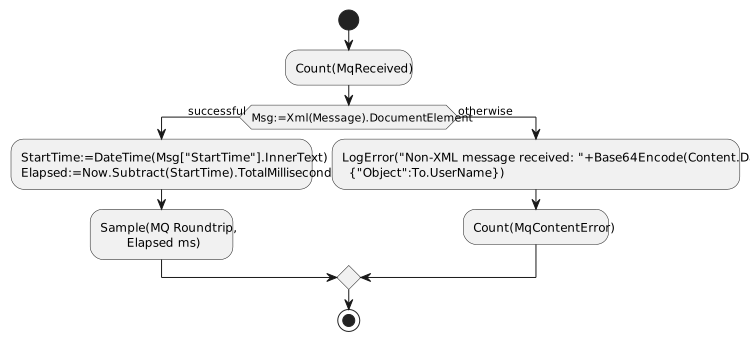
ProcessMqMessage
Processes a received MQ message.
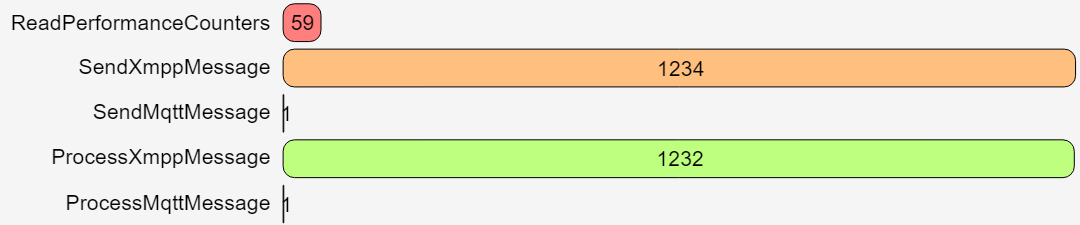
Counters


Measurements


Send messages


Received messages


Performance

CPU Performance


Memory Performance

I/O Performance


Threads

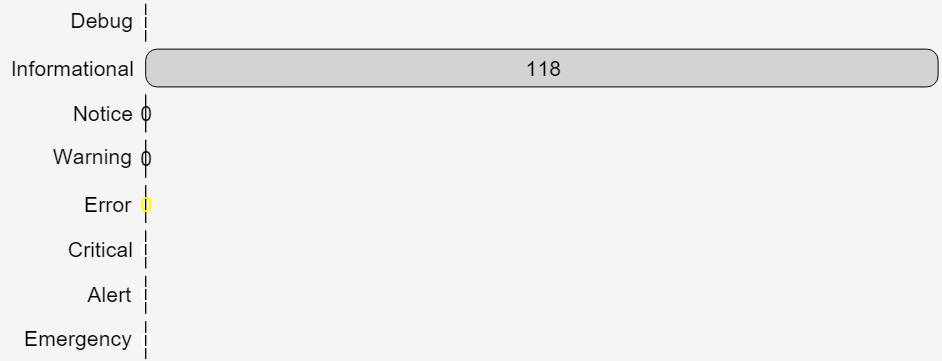
Events